Beginner's guide
3D with AI: a beginner's guide
Making a 3D model used to mean months of learning modeling software. Today an AI tool can build a first version from a sentence, a photo or a sketch, and you can have a real file in a few minutes. This guide takes you from nothing to a finished file, in the order you will actually do things.
Every step uses a free tool on 3D AI, and each chapter link goes deeper if you get stuck. You do not need any 3D experience. You need a browser and an idea.
The short answer
To make a 3D model with AI, describe an object in words (Text to 3D), upload one clear photo (Image to 3D) or upload a sketch with a short description (Sketch to 3D). The tool builds the model in a few minutes. Check it in a viewer, then download it as GLB for the web, AR and games or as STL for 3D printing.
What "3D with AI" means
A 3D model is a shape made of thousands of tiny triangles, called a mesh, often with a picture wrapped around it, called a texture. A game character, a phone case design and a product preview are all meshes. Building one by hand in modeling software takes practice.
An AI 3D generator skips the hand work. It has learned from many examples what objects look like in three dimensions, so when you give it a description or a picture it builds a mesh that matches. You still decide what to make and whether the result is good enough. The AI does the modeling.
You can start from three kinds of input:
- Text. You write what you want. Best when you have an idea but no picture. See what is text to 3D.
- A photo. You upload one image of one object. Best when the thing already exists or you have a picture of it.
- A sketch. You upload a drawing and describe it. Best when you can draw the shape you want.
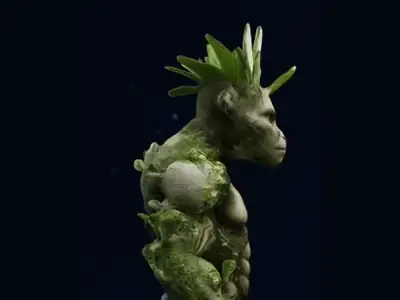
Be realistic about what you get. AI models are a very good first version, not a finished product from a professional studio. Thin parts, small text and the sides you cannot see in a photo are the usual weak spots. Step 5 shows how to deal with them.
1Pick the input that fits your idea
Start with what you already have. If you have a photo of the object, use it. If you only have an idea, write it. If you can draw it, sketch it. Each tool costs a fixed number of credits per model, and new accounts start with free credits to try.
| Your starting point | Tool | What you give it | Credits per model |
|---|---|---|---|
| An idea in your head | Text to 3D | A short written description | 15 |
| A photo of one object | Image to 3D | One PNG, JPG or WEBP up to 10 MB | 20 |
| A drawing or sketch | Sketch to 3D | A sketch image plus a short description | 20 |
Not sure between text and a photo? Read text to 3D vs image to 3D for a side-by-side comparison. As a rule of thumb, a good photo gives you more control over the shape, and a good prompt gives you more freedom to invent something that does not exist yet.
2Prepare your prompt or your photo
This is the step beginners skip, and it matters more than any setting. The tool can only build from what you give it, so a clear input is the biggest single reason for a good result.
If you are writing a prompt
- Describe one object, not a scene.
- Say what it is, its material and its style: "a small wooden toy robot, rounded edges, painted red".
- Add two or three details that matter, such as the number of legs or the shape of the base.
- Skip backgrounds, camera words and long stories.
The full method, with examples you can copy, is in the text to 3D prompt guide.
If you are using a photo
- Use one subject, fully in the frame, with nothing cut off.
- Use a plain background and even light, with no hard shadows.
- Shoot from a slight angle above, so the top and the front are both visible.

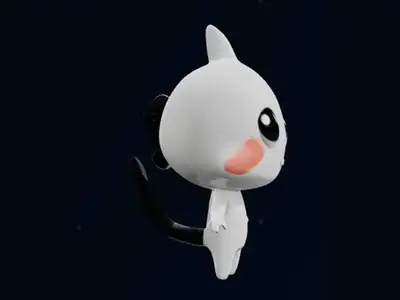
That example shows the idea: one subject, a clean background, and a 3D model that keeps the look of the picture. The best photos for image to 3D chapter lists what works and what fails.
3Generate your first model
Open the tool that matches your input and follow the same short routine. The exact boxes differ a little between tools, but the flow is the same.
- Open Text to 3D, Image to 3D or Sketch to 3D and sign in if you are asked to.
- Type your prompt in the Prompt box, or upload your image. For a sketch, upload it and add a short description.
- Leave the other settings as they are for your first try.
- Press Generate 3D Model.
- Wait while the model is built. Most text and image models take about 1 to 3 minutes, and sketch models can take a little longer, up to about 5 minutes. Keep the page open.
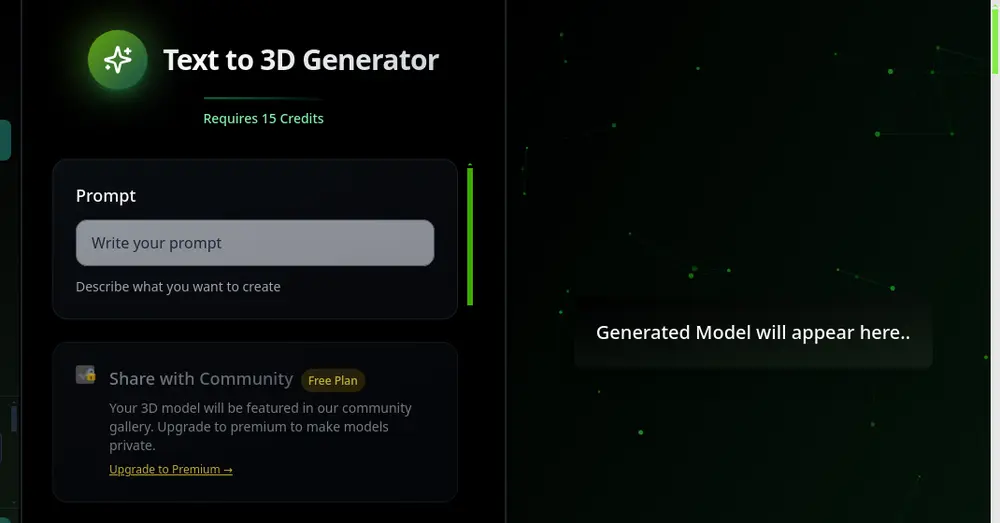
Two settings are worth knowing about. The Generator Seed is the random starting point: the same prompt with the same seed gives you the same kind of result, and a new seed gives you a different take. Inference Steps controls how long the tool works on the model: more steps can give higher quality but take longer.
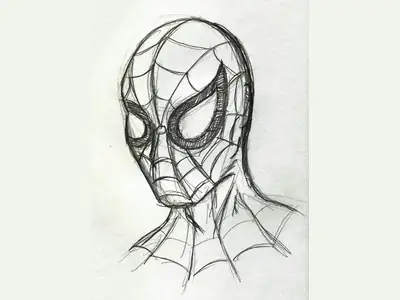
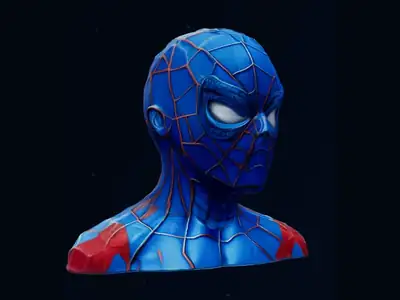
Sketch to 3D works the same way, with a drawing as the starting point:
4Check the result in the viewer
Your model appears in the viewer on the tool page. Do not stop at the first angle. A model can look perfect from the front and be broken at the back.
- Drag to rotate the model and look at it from all six sides: front, back, left, right, top and bottom.
- Scroll to zoom in on small details such as hands, handles, ears and edges.
- Check the outline. Is the shape what you asked for? Are parts missing, fused together or stretched?
- Check thin parts, such as antennas, legs and handles. These are the most likely to look rough or to be too thin to print.
- Check the surface and colours. Do they look like the picture or the prompt you gave?
After you download a file, you can open it again any time in the free GLB viewer. Drag to rotate, scroll to zoom and right-click to pan. The file is read on your own device and is not uploaded. For STL files use the STL viewer, which also shows the size in millimetres.
5Fix the most common problems
Almost every beginner hits one of these. Most fixes are about changing the input, not fighting the tool.
| What you see | Likely cause | What to try |
|---|---|---|
| The shape is wrong or messy | The prompt is vague or describes a scene | Describe one object with its shape and material, then generate again |
| It is a different object each time | The seed is random | Keep the same seed while you change one word at a time |
| The back looks odd | A single photo cannot show the back, so the AI guessed | Use a photo from a slight angle, or try another photo of the same object |
| Parts are missing or fused | Thin, transparent or shiny parts in the photo | Use a photo with a plain background and matte surfaces |
| The surface is too rough | The tool used few steps, or the input was small | Raise the Inference Steps and use a larger, sharper input |
| The model is not what you pictured | The idea was too complex for one object | Make a simpler version first, then change it with Edit 3D Model |
Change one thing at a time. If you change the prompt, the seed and the steps together, you will not know which one helped. Generating a few versions and keeping the best is normal practice, not a sign that something went wrong.
For deeper clean-up of a finished model, see how to retopologize a 3D model and how to reduce STL file size.
6Export the right file and use it
The tools give you two downloads: GLB and STL. Pick the one that matches what you want to do next.
| File | Use it for | Notes |
|---|---|---|
| GLB | Web pages, AR, games, 3D viewers and Blender | One file that keeps colours and textures |
| STL | 3D printing | Shape only, with no colour or textures |
| OBJ, FBX or USDZ | Other apps, game engines or AR on iPhone | Convert from GLB with GLB to OBJ, GLB to FBX or GLB to USDZ |
If you want to 3D print it
- Download the STL and open it in the STL viewer to check the size.
- Scale it to the size you want to print.
- Think about how it will sit on the build plate: see how to choose 3D print orientation.
- Load it into your slicer and print.
If you want to use it on the web, in AR or in a game
Download the GLB. Most web viewers, game engines and 3D apps open it directly. If your app wants a different format, use one of the converter pages in the table above. To change the colours or style afterwards, see how to texture a 3D model with AI.
Five beginner mistakes to avoid
- Asking for a whole scene. The tools build one object. Make the table, the lamp and the chair as separate models.
- Using a busy photo. Several objects or a cluttered background make the shape unclear.
- Judging from one angle. Always rotate the model before you decide it is good or bad.
- Expecting a print-ready file with no checking. Look at the thin parts and the size before you print.
- Giving up after one try. Change the prompt, the photo or the seed and generate again.
Where to go next
You now have the whole path. Pick the chapter that matches your next question:
- What is text to 3D? explains how a sentence becomes a model.
- Text to 3D vs image to 3D helps you choose an input.
- Best photos for image to 3D shows how to shoot a photo the AI can use.
- Text to 3D prompt guide gives you prompts you can copy and change.
- How to open an STL file online and how to turn a photo into a 3D model are short lessons in the Learn 3D path.
Frequently asked questions
Do I need 3D modeling skills to use AI for 3D?
No. You describe an object, upload a photo or upload a sketch, and the tool builds the model. Some knowledge of 3D helps when you want to polish the result, but you can make, view and download a model without any.
Which should I start with: text, photo or sketch?
Start with whatever you already have. A clear photo of one object usually gives you the most control over the shape. If you only have an idea, use text. If you can draw it, use a sketch.
How long does it take to make a 3D model with AI?
Most text and image models take about 1 to 3 minutes. Sketch models can take a little longer, up to about 5 minutes. Writing a good prompt or taking a good photo usually takes longer than the generation.
Which file should I download, GLB or STL?
Download GLB for the web, AR, games and 3D apps, because it keeps colours and textures. Download STL for 3D printing, because printers only need the shape.
Can I 3D print a model made with AI?
Yes. Download the STL, check its size in the STL viewer, scale it, and choose a print orientation. Look closely at thin parts first, because they are the most likely to be too weak or too rough to print well.
Try it now
It is free to start and runs in your browser. New accounts get free credits.