Lesson 1 of 12 · Beginner
How to open an STL file online, free and without software
An STL file is a 3D model made of triangles. It is the standard file for 3D printing, but Windows, macOS and phones often have no app that opens it. You do not need one: a browser can show it.
This guide uses the free online STL viewer. The file is opened on your own computer and is never uploaded.
What you need
- An .stl file (binary or ASCII, up to 100 MB)
- Any modern browser on Windows, Mac, Linux, ChromeOS or a phone
1Drop the STL on the viewer
Open the STL viewer. Drag your file onto the box that says Drop a .stl file here or click to choose, or click it to pick the file.
Both kinds of STL work: binary (small) and ASCII (text). The viewer detects which one you have.
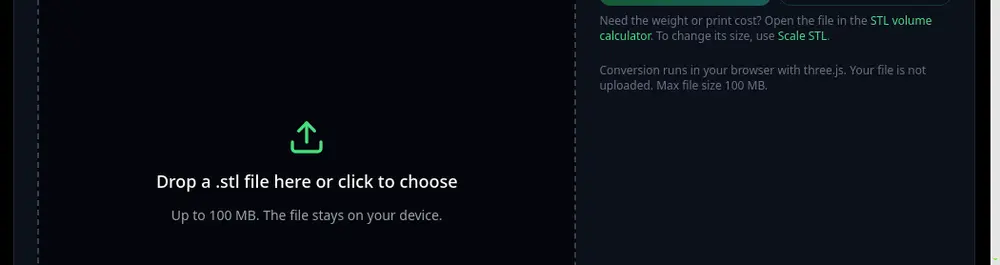
The viewer: drop a .stl, nothing is uploaded. 2Look around the model
Drag to rotate, scroll to zoom and right-drag to pan. The front, side and top buttons give straight views, and Wireframe shows the triangles the model is made of.
3Read the size, volume and area
The panel shows the model size, surface area and volume, in mm or inches. Volume only shows for a closed mesh, because it cannot be measured on a model with holes.
STL has no units. The viewer reads the numbers as millimetres, like every slicer does. If a model looks 25 times too small, it was saved in inches: fix it with scale STL.
4Check that it will print
The watertight line counts open and non-manifold edges. Zero means the mesh is closed and slicers will read it cleanly. Open edges are the most common reason a slicer shows errors.
Need another format? Save as OBJ and Save as binary STL sit next to the viewer. Saving an ASCII STL as binary makes it about five times smaller.
Tips
- No STL yet? Make one from a photo with Image to 3D, or browse the 3D print ideas.
- Other formats have their own free viewers: GLB/GLTF, 3MF, FBX and STEP.
Try it now
It is free and runs in your browser.
Open the free STL viewer