Upload a 3D model, describe the texture, and AI paints it from every side. Your mesh stays exactly as it is; only the surface changes.
Loading the 3D studio...
AI texturing examples
Real results from this studio, made by our team on test models, no customer uploads. In every example the mesh stays exactly the same. Only the texture painted on its surface changes.
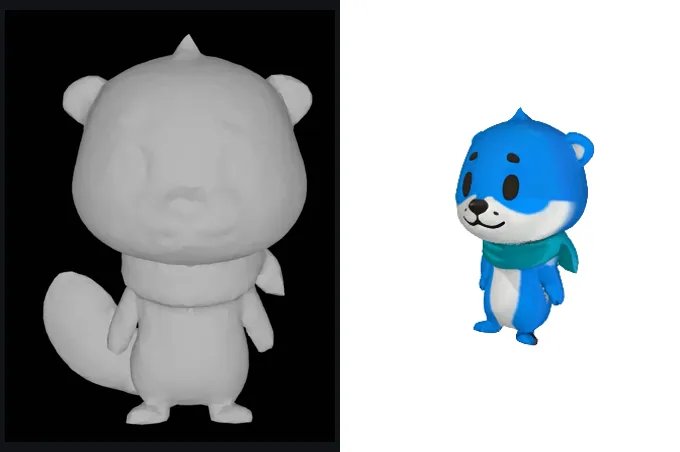
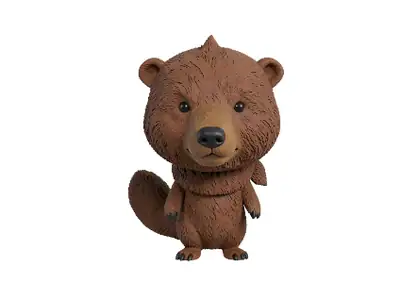
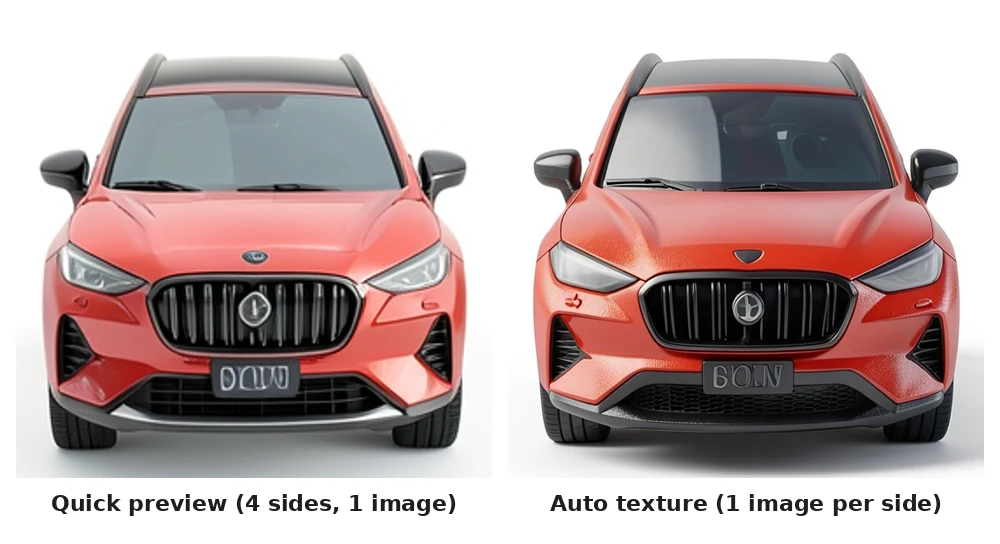
Left: the grey Bear sample as uploaded. Right: the same mesh after Auto texture, painted blue with a white belly and a scarf.The same Bear mesh with a different prompt: brown fur. The shape does not change, only the paint.A castle model textured in grey stone, seen from six angles. The stone and roofs match on every side.A red SUV model. Left: Quick preview, all 4 sides from one AI call (2 credits). Right: Auto texture, one AI image per side, with a sharper grille and lights.
How to texture a 3D model with AI
1
Upload your model
Drop a GLB, GLTF, OBJ, FBX, STL or PLY file, or pick a sample. Keep your own UV map, or let the studio make new UVs.
2
Describe the texture
Write what the surface should look like, or pick a style or a prompt idea.
3
Paint with AI
Auto paints 4, 6 or 8 views. Turn the model to paint any spot again, or brush one part and repaint only that.
4
Fix and finish
Heal seams and paint by hand for free, then make normal, roughness, metal and AO maps in your browser.
5
Download
Get a textured GLB with its maps, or the texture PNGs to use in Blender, Unity, Unreal or Godot.
AI texture generator for 3D models
Most AI texture generators give you a flat square image. This one paints a texture onto a real 3D model. What goes in: your model as a GLB, GLTF, OBJ, FBX, STL or PLY file (up to 60 MB and 600k triangles), plus a short prompt such as "mossy old stone statue". You can add a style (Realistic, Stylized game, Cartoon, Anime, Metal, Wood, Stone or Sci-fi) and one reference image whose colours the texture should follow.
The studio looks at your model from 4, 6 or 8 sides. For each side, the AI paints a picture that fits the shape, and the studio projects it back onto the surface. Your mesh, polygon count and size never change. If the model has a usable UV map you can keep it. If it has none, like most STL files, the studio makes new UVs for you, or you can unwrap it first with the free UV unwrap tool.
What comes out: a textured GLB that opens in Blender, Unity, Unreal and Godot, or just the texture as a PNG that fits your UVs. The texture is 2048 px on most computers. Each AI view costs 2 credits, and new accounts get 20 free credits.
No model yet? Make one with text to 3D, then texture it here. Want to swap or recolour a texture by hand instead? The free GLB texture editor does that in your browser. For a flat tile image rather than a painted model, use the seamless texture generator.
PBR maps from your AI texture
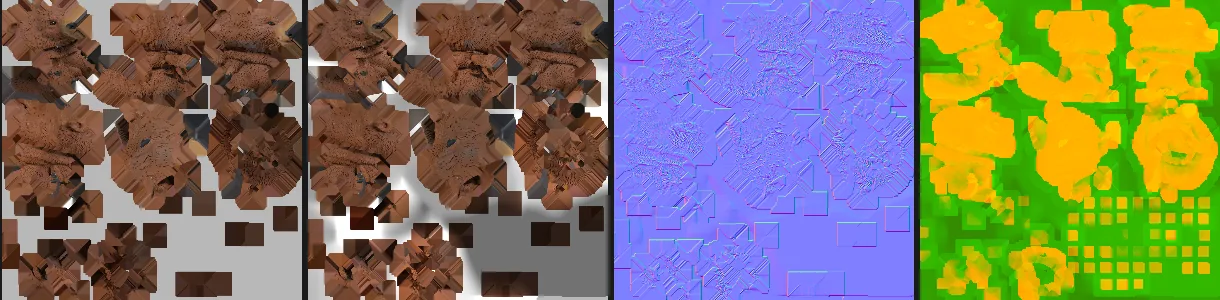
Game engines and renderers want more than colour. After painting, press Make PBR maps and the studio builds a normal map, a roughness map, a metalness map and an ambient occlusion map from your texture. It runs in your browser and costs no credits. Remove lighting evens out shadows the AI painted into the colour. With the map preview on, the GLB download carries the maps, and you can also save them as separate PNGs.
Real maps made from a brown fur texture on the bear model, left to right: painted colour, colour with lighting removed, normal map, and the ORM map (ambient occlusion, roughness and metalness in one image).
Frequently Asked Questions
GLB, GLTF, OBJ, FBX, STL and PLY, up to 60 MB. Models without UVs (like most STL files) get new UVs automatically.
Yes. If your model has a usable UV map, choose "Keep my UVs" and the AI paints into your own layout and material slots, so the texture drops into your game or Blender file. If your UVs overlap, mirrored parts share paint; pick "Make new UVs" to give every part its own space.
No. The mesh, shape and polygon count stay exactly the same. The AI only paints the texture that is wrapped on the surface.
Each AI view costs 2 credits. Auto texturing paints 4 views (8 credits), or 6 or 8 views (12 or 16 credits) for hidden areas. A quick preview paints all 4 sides in one call for 2 credits. Heal, Paint and PBR maps are free.
Yes. Press "Make PBR maps" to build normal, roughness, metal and ambient-occlusion maps from your painted texture, in your browser and for free. "Remove lighting" evens out shadows the AI painted in. The GLB download carries the maps while the preview is on.
Pick the Heal brush and stroke along the seam: it blends the line into the colour around it. The Paint brush paints a colour by hand. Both are free and work with Undo.
Grey means no view could see that spot, like under the arms or under the chin. Choose 6 or 8 views, or turn the model so you can see the spot, tick "Only fill grey (unpainted) areas" and press Paint this view.
A GLB file with the new texture applied, in the same size and units as your upload, or the texture image as a PNG that matches your model’s UVs. PBR maps download as separate PNGs.
Yes. Undo goes back up to 4 steps. You can also lower the strength slider to blend a new view gently over the old paint.
For 3D models. You upload a mesh and the AI paints a texture that fits its shape, from every side, into its UV map. If you need a flat, tileable texture image such as brick, wood or grass, the free Seamless Texture Generator on this site makes a photo of a surface tile in your browser.
Yes. Add one PNG, JPG or WEBP reference image in the Describe the texture box and the AI follows its colours and style. You can use it on its own or together with a prompt. Quick preview still needs a prompt or a style.
The texture map is 2048 x 2048 pixels on most computers. On phones and small touch screens the studio uses 1024 x 1024 so the page does not run out of memory.
Yes. New accounts get 20 free credits. Auto texture with 4 views uses 8 credits and a Quick preview uses 2, so the free credits cover two full Auto textures. Heal, Paint and PBR maps never use credits.