Lesson 6 of 12 · Intermediate
How to scale an STL file to an exact size
A model that opens tiny in the slicer, a figurine that needs to be exactly 120 mm tall, a part that must fit a hole: all of these are a scale problem.
This guide uses the free Scale STL tool. It shows the new size live and never uploads your file.
What you need
- An .stl file up to 100 MB
- The size you need, in mm or inches
1Add your STL
Drop the file on Scale STL. Its current size is shown in mm.
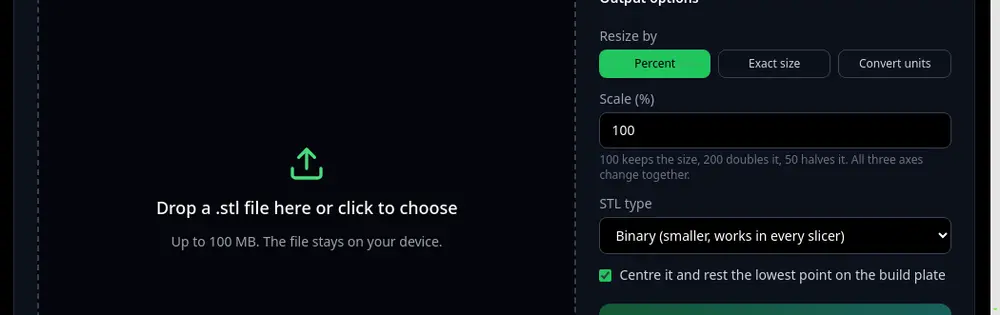
Three ways to resize: Percent, Exact size, Convert units. 2Choose how to resize
Percent scales all axes together: 200% doubles the model.
Exact size sets the width, depth or height you type, and the other axes follow when proportions are kept.
Convert units fixes a model saved in the wrong unit: inches to mm multiplies by 25.4, cm to mm by 10, metres to mm by 1000.
3Check the new size
The preview and the size readout update as you type. Leave Centre it and rest the lowest point on the build plate on so the model sits flat in your slicer.
4Download the STL
Press Download scaled STL. Binary is smaller; ASCII is plain text.
Tips
- Scaling changes everything by the same amount: a 3 mm hole in a model scaled to 200% becomes 6 mm. Re-check holes and threads that must fit something.
- Turning off "keep proportions" stretches round parts into ovals. Only do it on purpose.
Try it now
It is free and runs in your browser.
Open Scale STL