Lesson 7 of 12 · Intermediate
How to add text to an STL: emboss or engrave a name
A name on a keychain, a date on a gift, a part number on a bracket: text turns a download into something personal. You do not need CAD to add it.
This guide uses the free Add Text to STL tool. It opens STL, 3MF, OBJ, GLB and PLY files on your device.
What you need
- A model file, or one of the samples (keychain tag, ball or chess pawn)
1Open your model
Drag your file onto the tool, or try the keychain tag sample.
2Click where the text goes
Click a point on the model. The label sits on that face, square to it, with its letters upright. Click again to move it.
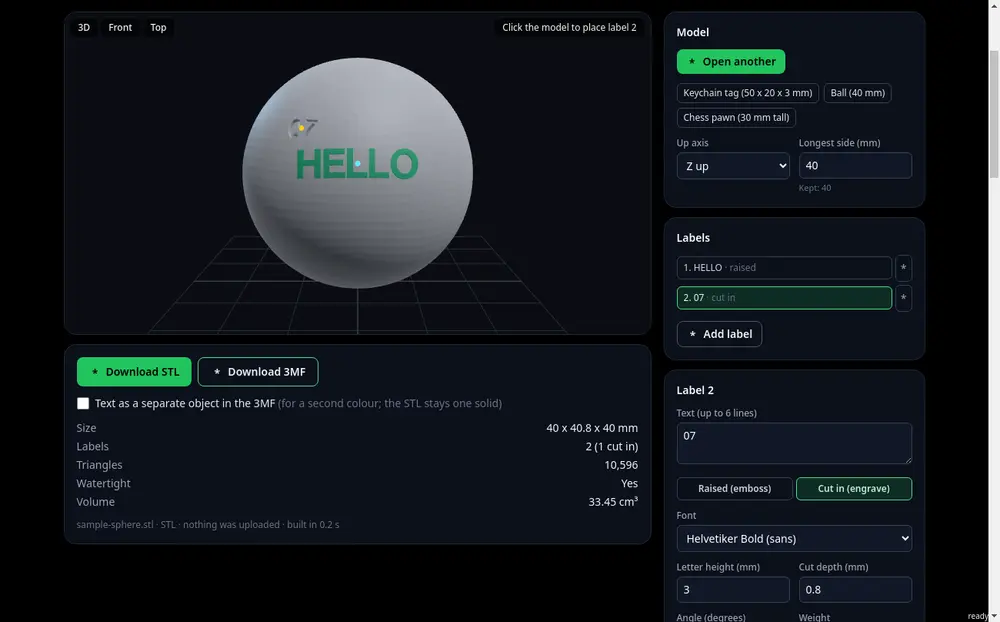
Raised text on a curved surface, ready to download. 3Type and style the text
Type one or more lines, then pick a font, letter height, spacing and angle.
Choose Raised (emboss) or Cut in (engrave) and set its height or depth. For FDM printers, letters at least 5 mm tall and 0.6 mm raised read well.
4Download and print
The text is joined to the model as one solid. Download STL for one colour, or Download 3MF with the text as its own object, so your slicer can print it in a second colour.
Tips
- Bold, simple fonts print best. Thin script fonts break at small sizes.
- Want the text on the side the printer sees best? Check print orientation after adding it.
Try it now
It is free and runs in your browser.
Open Add Text to STL