Lesson 8 of 12 · Intermediate
How to make a lithophane from a photo
A lithophane is a thin panel whose thickness follows a photo: dark parts are thick, light parts are thin. Held up to a light, the picture appears. It is one of the most popular 3D printed gifts.
This guide uses the free lithophane generator. Your photo stays on your device.
What you need
- A photo (PNG, JPG or WEBP) with clear contrast
- A 3D printer and white PLA
1Pick the photo
Portraits, pets and landscapes with clear light and dark areas work best. A busy or washed-out photo makes a muddy lithophane. Crop it to the shape you want first.
2Set size and thickness
Drop the photo on the generator. Set the Width in mm, then Thinnest (light) and Thickest (dark). 0.8 mm and 3 mm is a safe start.
Pick the Detail: Draft (0.4 mm), Standard (0.25 mm) or Fine (0.15 mm). Add a Frame in mm for a solid border, or 0 for none.
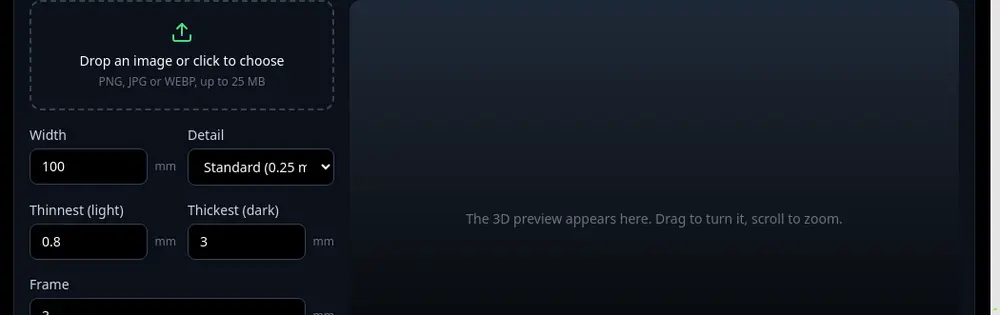
Width, detail and thickness settings. 3Check the backlit preview
The flat preview shows roughly how it will glow. Turn the 3D view to check the frame.
4Download and print
Save the STL. Slice it standing up (vertical), with 100% infill, a thin layer height such as 0.12 mm, white filament and a brim so the tall, thin panel does not tip over.
Without light behind it a lithophane looks blank. That is normal: hold it to a window or a lamp.
Tips
- Turn on Negative (light areas thick) only for special effects; normal lithophanes leave it off.
- More gift ideas: 3D printed gift ideas.
Try it now
It is free and runs in your browser.
Open the lithophane generator