Lesson 9 of 12 · Advanced
How to choose the best 3D print orientation
The way a model sits on the bed decides how much support it needs, how strong it is, how long it takes and how the visible faces look. Most failed prints come from a poor orientation, not a bad printer.
The rules are simple: a large flat base, few overhangs past 45 degrees, loads along the layers, not across them. The free Print Orientation Optimizer tests the rotations for you.
What you need
- An STL, OBJ, 3MF or GLB file
1Drop your model
Drag the file onto the optimizer, or press Choose file. It is read in your browser and never uploaded.
2Set the overhang angle
Faces that lean past this angle from vertical need support. 45 degrees suits most FDM printers; raise it if your printer bridges well.
3Pick a priority
Choose Fewest supports, Best bed adhesion, Shortest print or Balanced. The tool ranks the orientations again and shows the top 3.
Printing a functional part? Pick the result that keeps the load along the layers: layers are strongest side by side, weakest when pulled apart.
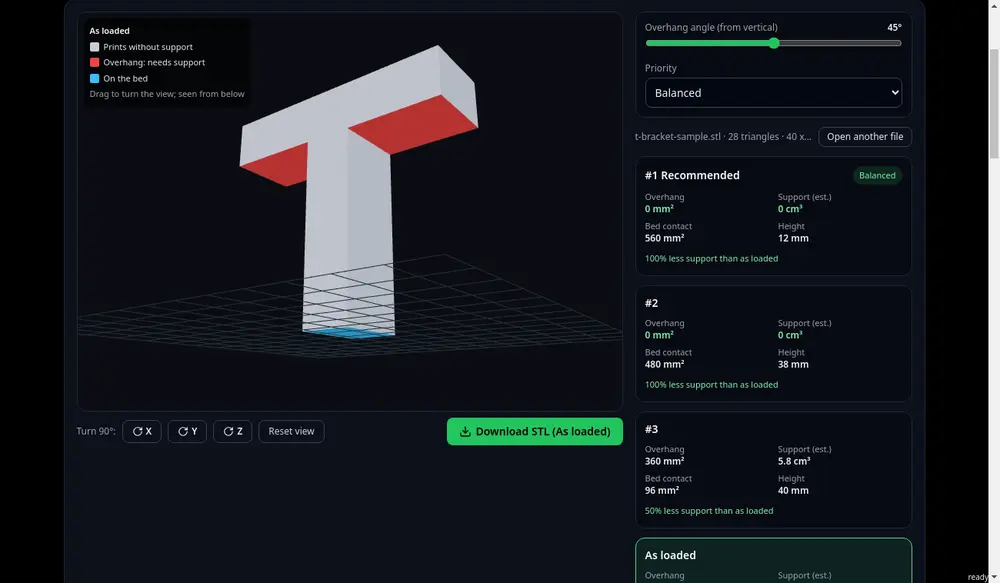
Overhangs show in red; the top 3 orientations are ranked on the right. 4Preview and download
Click a result to see it on the bed with its overhangs in red, turn it 90 degrees by hand if you like, then download the STL and slice it.
Tips
- A face that must look perfect should point up or sideways, never onto supports.
- Text on the model? Make sure it is not on a supported face. See how to add text to an STL.
Try it now
It is free and runs in your browser.
Open the orientation optimizer