Lesson 5 of 12 · Intermediate
How to reduce STL file size without losing detail
Scans, sculpts and AI models often have millions of triangles, far more than a printer can show. Uploads fail, slicers slow down and sharing sites reject the file.
Reducing (also called decimating) merges small triangles where the surface is flat or gently curved. This guide uses the free Reduce STL File Size tool, which runs on your device.
What you need
- An .stl file up to 100 MB
1Open the STL
Drop the file on the reducer. If it is an ASCII STL, saving it as binary alone makes it about five times smaller, before a single triangle is removed.
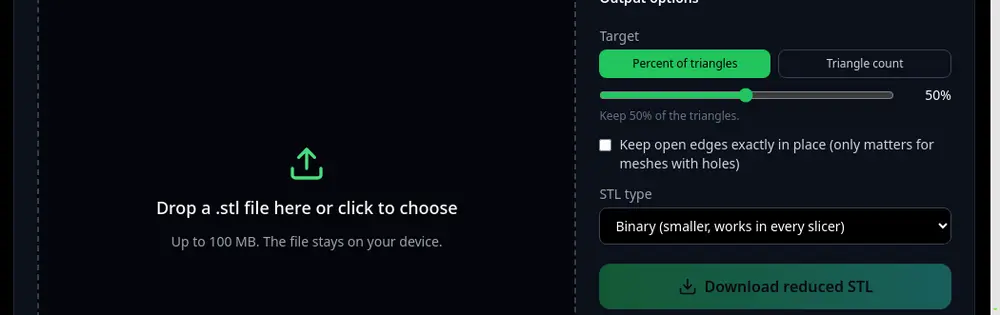
Pick a target as a percent or an exact triangle count. 2Choose a target
Under Target, choose Percent of triangles or Triangle count. Keeping 25% to 50% of the triangles is usually invisible on a print.
Tick Keep open edges exactly in place if the model has holes you want to keep sharp.
3Compare before and after
Switch the preview between the original and the reduced mesh, and read the new triangle count, file size and the largest deviation in mm. A deviation under your layer height will not show on the print.
Small text, fine texture and sharp detail go first, so zoom into those areas.
4Download
Press Download reduced STL and slice it as usual. The width, depth and height are kept identical.
Tips
- Reduce in steps: try 50%, check, then go lower. A target that would break the shape cannot be reached, and the panel tells you how far it got.
- Making a game model rather than a print? Retopology gives clean quads instead of fewer triangles.
Try it now
It is free and runs in your browser.
Open the STL reducer