Lesson 3 of 12 · Beginner
How to turn a photo into a 3D model with AI
You no longer need several photos and a photogrammetry app to get a 3D model. An AI image-to-3D model looks at one picture and builds the whole object, including the sides it cannot see.
This guide uses Image to 3D on the3dai.com. One model costs 20 credits, and new accounts start with free credits.
What you need
- One clear photo of a single object (up to 10 MB)
- A free the3dai account
1Choose the right photo
The photo decides the result. Use one object, fully in frame, sharp and evenly lit, on a plain background. A slight angle from above shows more of its shape than a flat front view.
Avoid busy scenes, several objects, strong shadows and cut-off edges. For a person or a pet as a figurine, use Photo to 3D Figurine.
2Upload it
Open Image to 3D and click Upload a clear image to convert to 3D (max size 10 MB). Sign in if you are asked to.
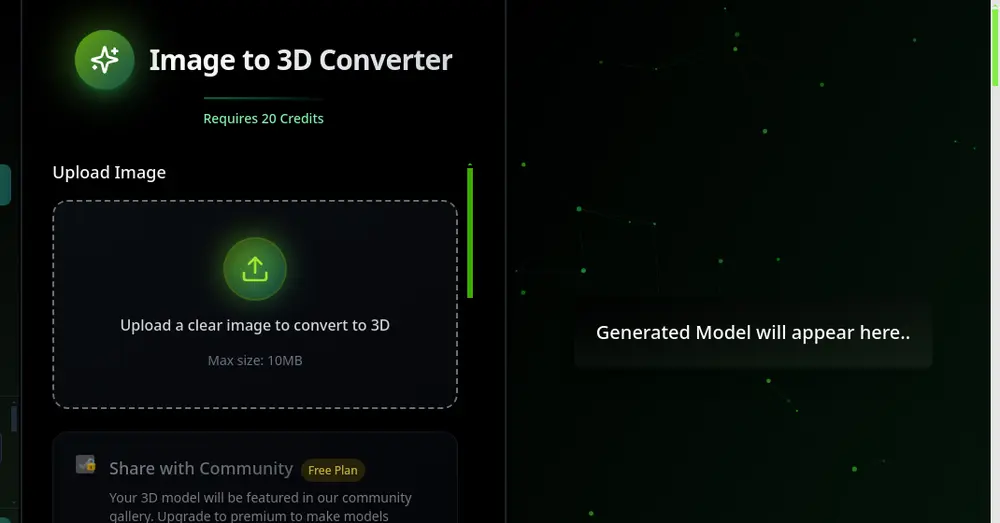
Image to 3D: upload one image, 20 credits per model. 3Generate the model
Press Generate 3D Model. Most models are ready in about 1 to 3 minutes; keep the page open while it works.
The model appears in the viewer. Turn it around to check the back and the sides the AI had to imagine.
4Download GLB or STL
Download GLB for a textured model for games, AR, the web or Blender. Download STL to 3D print it.
Printing it? Check the size first with the STL viewer, then scale it to the size you want.
Tips
- Not happy with one side? Try a photo taken from a different angle, or edit the result with Edit 3D Model.
- Want to compare tools first? See the best image to 3D AI tools.
Try it now
It is free and runs in your browser.
Open Image to 3D