How to texture a 3D model with AI
This tutorial takes you from a plain grey model to a textured GLB in the AI 3D Texturing Studio. You do not need Blender or any install: the studio runs in your browser.
The AI paints the surface only. Your mesh, its shape and its polygon count stay exactly the same.
What you need
- A 3D model (GLB, GLTF, OBJ, FBX, STL or PLY, up to 60 MB), or one of the samples
- A free the3dai account to paint (each AI view costs 2 credits)
1Open a model or pick a sample
Open the studio. In box 1 Your 3D model, click Drop a model or click to upload, or drag your file onto it.
No model yet? Under No model? Pick a sample, choose Bear, Dragon or Gamepad. The model opens in the 3D viewer on the right. A sample also fills in a prompt idea for you.
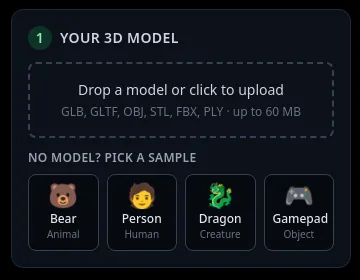
Box 1: drop a model, or pick a sample. 2Describe the texture
In box 2 Describe the texture, write what the surface should look like, for example "blue furry bear with black eyes and a red scarf". Short and concrete works best: colours, materials, and where they go.
Click one of the Ideas if you want a starting point, and pick a style: Realistic, Stylized game, Cartoon, Anime, Metal, Wood, Stone or Sci-fi. The style adds a few words to your prompt. No style adds nothing.
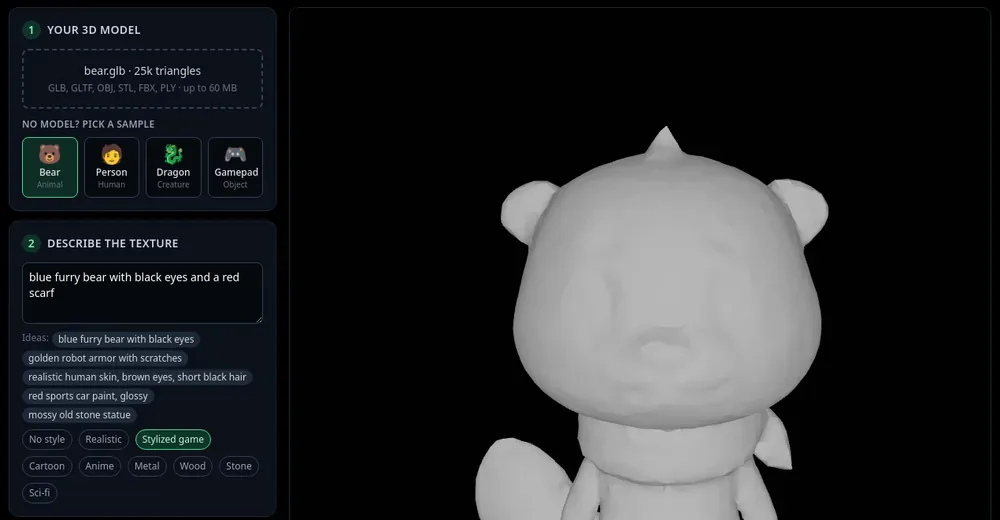
The Bear sample is open (25k triangles), the prompt is filled in and Stylized game is selected. 3Press Auto texture
In box 3 Paint with AI, pick the number of views next to Views: 4 (8 credits), 6 (12 credits) or 8 (16 credits). Then press Auto texture: 4 views (8 credits); the label follows your choice. If you are not logged in, the login window opens first.
The studio paints the front, right, back and left views one after another. Each view sees what the earlier views painted, and each new view is colour-matched to the paint it overlaps, so colours stay consistent. With 6 or 8 views, the extra views aim at the parts the first four see worst, such as the top and the underside. The top of the viewer shows which view is running: plan for about 15 to 30 seconds per view.
When all views are done, the studio fills small gaps the cameras could not see.
Want a cheap first look at your prompt? Quick preview: 4 sides in 1 call (2 credits) paints all four sides from one AI image, with less detail. If you like it, run Auto texture for the full result.
4Check the result and fix spots
Drag in the viewer to turn the model, or use the view buttons under it: Front, Right, Back, Left, Top, Bottom. The AI images for each view appear as small thumbnails under the viewer.
Spot you do not like? Turn the model to face it and press Paint this view (2 credits). Grey spots are places no camera saw, like under the chin. See fix grey spots. To change only one part, brush over it with Select region. A visible line where two views meet? Blend it away for free with the Heal brush.
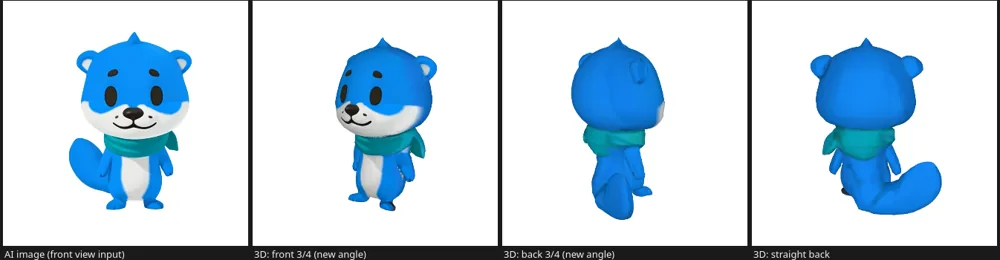
A real result from four AI views on the bear, rendered from new angles. Left: the AI image for the front view. 5Download
Need normal, roughness, metal and AO maps for a game engine? Make them first in box 4 PBR maps, free: see make PBR maps.
In box 5 Download, press Download textured model (GLB). You get a file named after your model, like bear_textured.glb, in the same size and units as your upload.
Want only the image? Texture only (PNG) saves the texture that fits your model’s own UV map. Next: import the GLB into Blender, Unity, Unreal or Godot.
Tips
- Want the colours to stay closer to an earlier view? Lower Strength before you paint again: a lower value blends the new view gently over the old paint.
- The AI paints the colour (albedo). Normal, roughness, metal and AO maps come from the free Make PBR maps button in box 4, made in your browser from that colour.
Try it now
The Bear sample opens with its prompt filled in. Press Auto texture.
Open the bear sampleMore tutorials
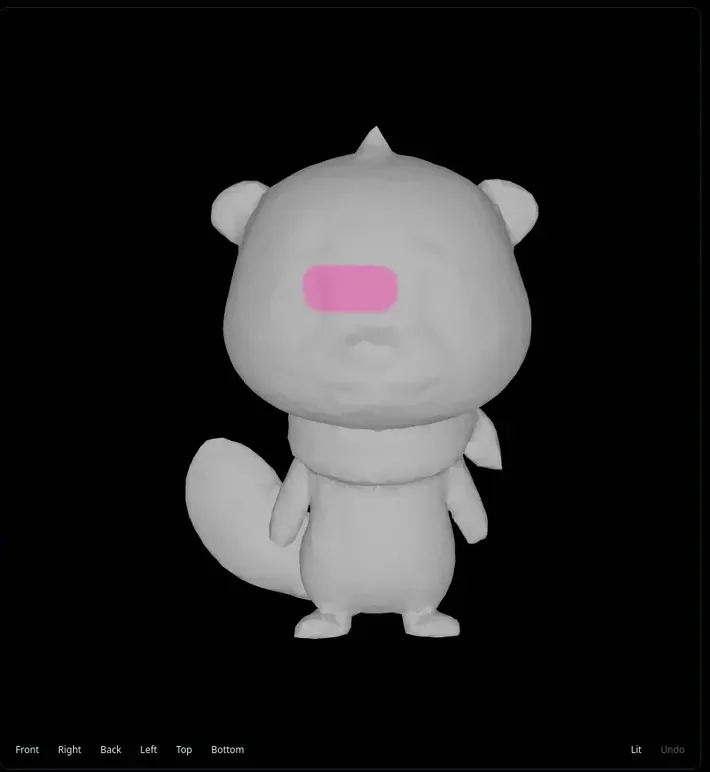 How to repaint only part of a 3D model with AIBrush over one part and repaint only that area.
 How to fix texture seams with the free Heal brushStroke along a seam line to blend it away. No credits.
 How to texture hidden areas with 6 or 8 viewsExtra views aim at the top, underside and spots 4 views miss.
 Download your textured GLB and use it in Blender, Unity, Unreal or GodotGLB vs PNG, and the exact import steps for each app.