How to texture hidden areas with 6 or 8 views
Auto texture with 4 views paints the front, right, back and left. Areas none of those cameras face, like the top of the head, the underside or the inside of an arm, can stay grey or look stretched.
With 6 or 8 views, the studio adds cameras aimed at exactly those areas. It picks each extra angle by looking at what is still unpainted or only seen at a steep angle.
What you need
- A model open in the studio
- 12 credits for 6 views or 16 credits for 8 views (2 credits per view)
1Pick 6 or 8 views
In box 3 Paint with AI, next to Views:, press 6 (12 credits) or 8 (16 credits). The main button changes to match, for example Auto texture: 8 views (16 credits).
2Press Auto texture
The studio paints the front, right, back and left first. For each extra view it then tries angles around, above and below the model, skips angles close to views it already used, and picks the one that sees the most surface that is still grey or was only seen at a steep angle.
Every view after the first is colour-matched to the paint it overlaps, so the extra views blend in. When all views are done, the studio fills small gaps. Each view takes about 15 to 30 seconds.
3Check the top and the underside
Use Top and Bottom in the bar under the viewer, and drag the model to look into tucked-in spots like the armpits.

Top and Bottom show the areas side views miss. 4Fill what is still grey
Turn the model so the grey spot faces you, tick Only fill grey (unpainted) areas, and press Paint this view (2 credits). Only unpainted spots change. Full steps: fix grey spots.
5Blend leftover lines for free
Where an extra view meets the others you may see a line. Stroke over it with the free Heal brush: see fix texture seams.
Tips
- Not sure about the prompt yet? Try Quick preview: 4 sides in 1 call (2 credits) first. It paints all four sides from one AI image, with less detail. When you like the look, run Auto texture with 6 or 8 views.
- Simple shapes that the four side views already cover may not need the extra views. Characters and creatures with overhangs and tucked-in parts are where 6 or 8 views help.
Try it now
Open the Dragon sample and run Auto texture with 8 views.
Open the dragon sampleMore tutorials
- How to fix grey, unpainted spots after AI texturingTurn to the spot, tick Only fill grey areas, paint the view.
 How to texture a 3D model with AIOpen a model, describe the look, press Auto texture, download.
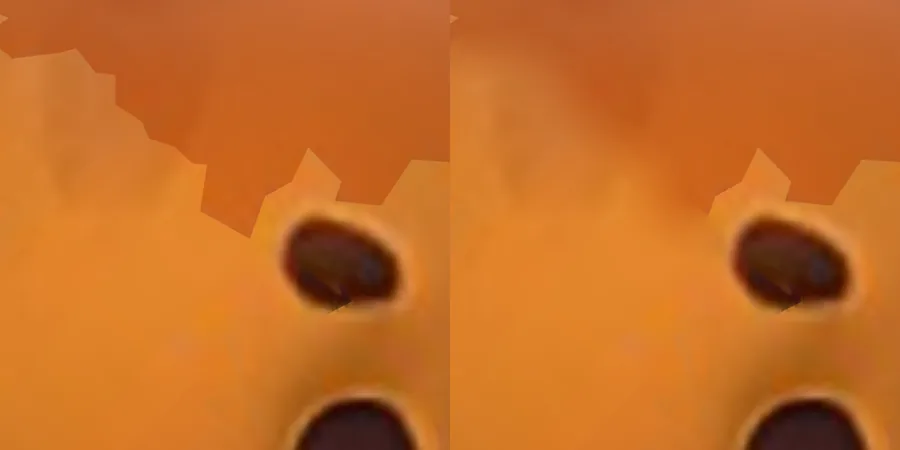 How to fix texture seams with the free Heal brushStroke along a seam line to blend it away. No credits.