How to fix texture seams with the free Heal brush
AI texturing paints a model from several camera views. Where two views meet you can sometimes see a line or a small step in colour, and one view can leave a blotch. The Heal brush in the studio blends those spots into the colour around them.
Heal is free. It runs in your browser and does not call the AI, so it costs no credits.
What you need
- A painted model in the studio
- No credits: the Heal and Paint brushes are free
1Turn the seam towards you
Drag in the viewer, or use the view buttons under it, until the seam faces you. Heal works on what you see, so a seam seen straight on is easier to follow than one at a steep angle.
Press Lit to switch to Flat if you want to see the colours without shading. A step in colour is easier to spot that way.
2Press Heal
In box 3 Paint with AI, under Brush on the model, press Heal. The button turns pink, and dragging in the viewer now brushes instead of turning the model.
The box shows a Brush size slider and a Heal strength slider (10% to 100%).
3Set the brush size and strength
Pick a brush a bit wider than the seam. A bigger brush also blends over a wider area; a smaller one keeps the detail next to the seam.
Start at full strength. Lower Heal strength for a gentler blend on detailed areas such as eyes or patterns.
4Stroke along the seam
Drag along the seam line, or over the blotch. Heal blurs the paint you see and writes it back only inside your stroke, so the rest of the model stays exactly as it is. It does not smear one surface onto another behind it (an arm onto the body), and it follows the model across UV seams.
Still visible? Stroke again: each stroke blends a little more.
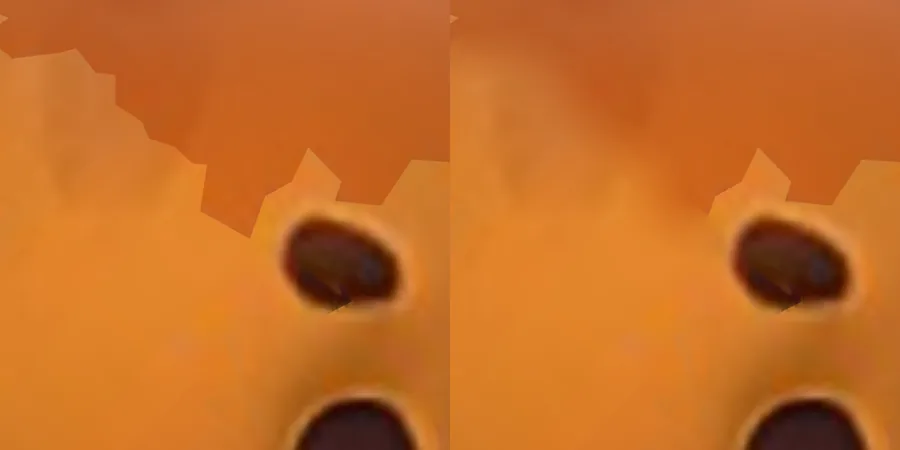
A real seam on the bear: before (left) and after two Heal strokes (right). 5Undo a stroke you do not like
Each stroke is one Undo step, up to 4 back. Undo is at the right of the bar under the viewer. See before/after and undo.
6Press Heal again to turn the model
Press Heal again to switch the brush off; dragging turns the model again. Turn to the next seam and repeat. When you are done, download your GLB.
Tips
- Heal blends; it cannot invent detail. If two views really disagree (a different colour, a broken pattern), repaint that area instead: turn the model to it and press Paint this view (2 credits), or brush it with Select region and repaint only that part.
- For a spot that should be one flat colour, use the free Paint brush next to Heal: pick a Colour, set the Opacity, and brush. Its edge is soft.
- Auto texture already colour-matches each new view to the paint it overlaps. Heal is for the lines that remain.
Try it now
Paint the Bear sample, then heal any seam you see.
Open the bear sampleMore tutorials
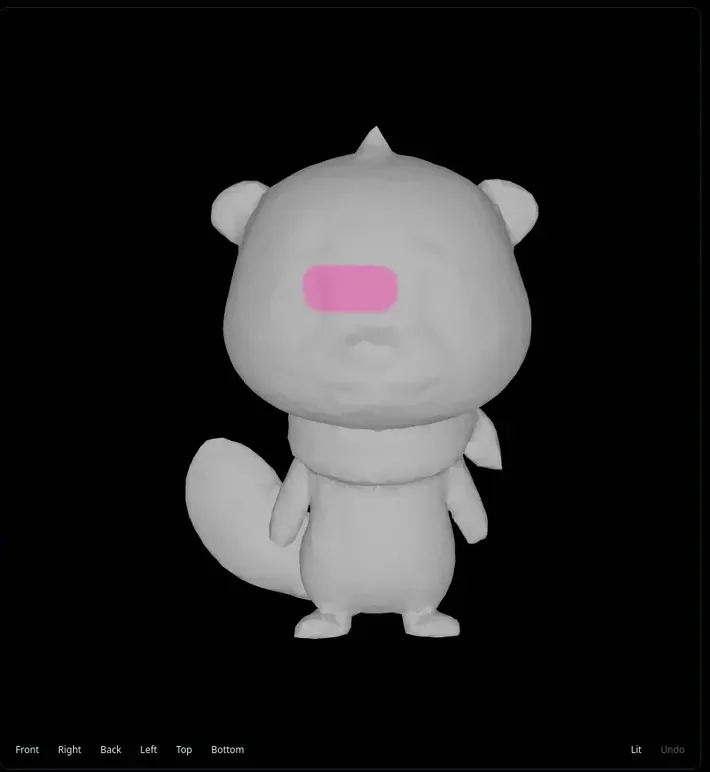 How to repaint only part of a 3D model with AIBrush over one part and repaint only that area.
 How to texture hidden areas with 6 or 8 viewsExtra views aim at the top, underside and spots 4 views miss.
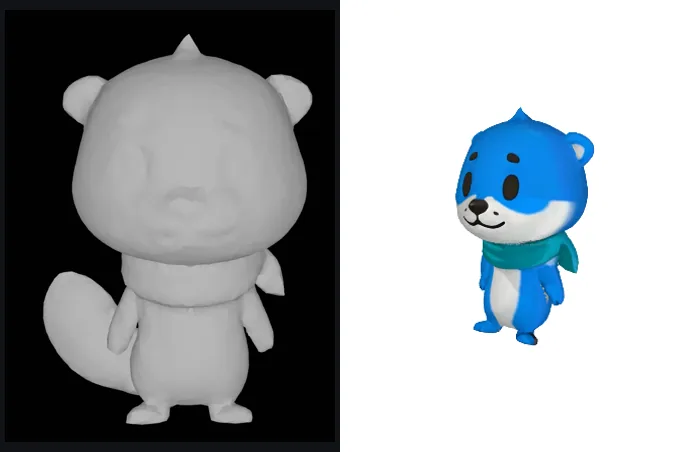 Compare before and after, undo, and repaint a viewHold for the bare model, undo up to 4 steps, paint a view again.