Compare before and after, undo, and repaint a view
AI results vary from run to run. These three controls let you judge a result quickly and roll it back when it is not right.
What you need
- A model you have painted at least once in the studio
1Hold "Hold: before" to see the bare model
After the first paint, a Hold: before button appears in the bar under the viewer. Press and hold it: the model shows without any paint. Let go and the paint comes back. With the keyboard, focus the button and hold Space or Enter.
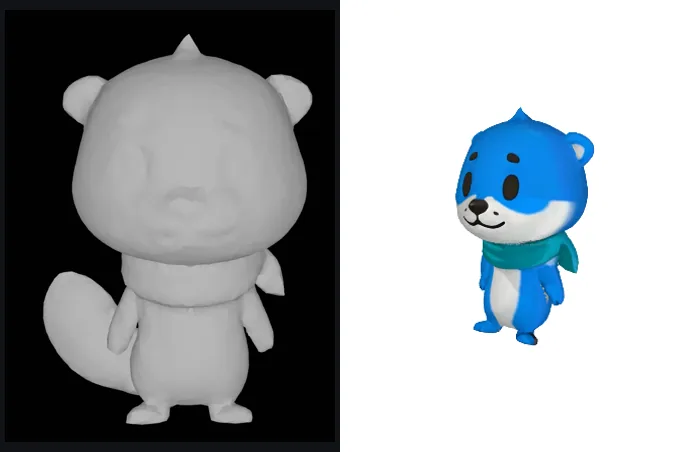
Left: the bare model (what Hold: before shows). Right: after Auto texture. 2Press Undo to go back
Undo sits at the right of the same bar. Each press removes the last paint step, up to 4 steps back. An Auto texture run counts one step per view, and each stroke of the free Heal or Paint brush is one step.
On very large textures the studio keeps fewer undo steps so the browser tab does not run out of memory.

The bar under the viewer: views on the left, Lit/Flat and Undo on the right. 3Paint the view again for a new result
There is no separate re-roll button: undo the view, keep the model at the same angle, and press Paint this view (2 credits). The AI makes a fresh image, so the result usually differs. Change the prompt a little if you want a clearly different look.
Use the Strength slider (20% to 100%) to blend a new view softly over the existing paint instead of replacing it.
4Switch Lit and Flat
The Lit button switches to Flat, which shows the texture colours without lighting. Flat is closest to what the PNG file holds.
Tips
- If the AI changes the outline of the model in a view, the studio warns you ("The AI changed the outline in this view"). Press Undo and paint that view again.
- The small thumbnails under the viewer are the AI images of your last views. They help you see which view caused a problem.
Try it now
Paint the Bear sample, then hold Hold: before.
Open the bear sampleMore tutorials
 How to texture a 3D model with AIOpen a model, describe the look, press Auto texture, download.
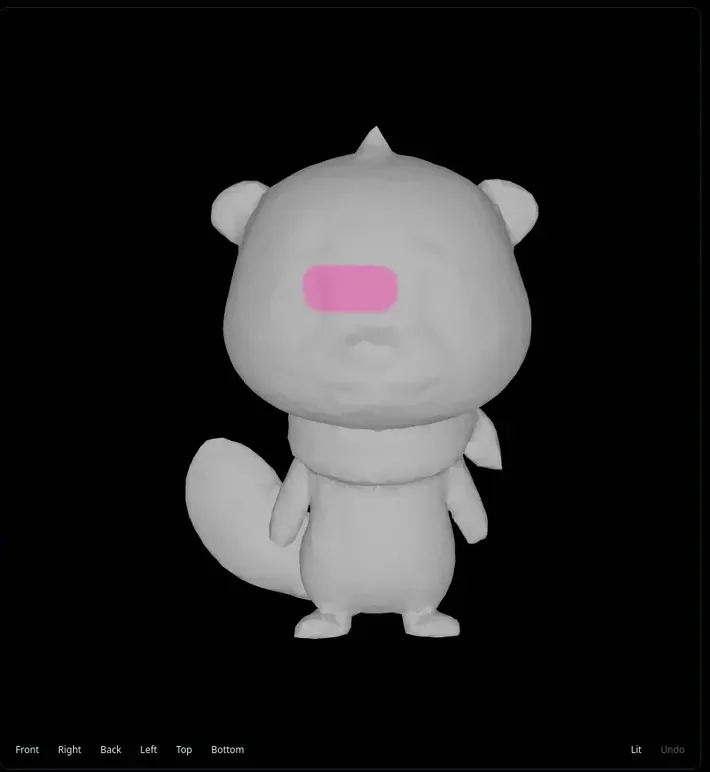 How to repaint only part of a 3D model with AIBrush over one part and repaint only that area.
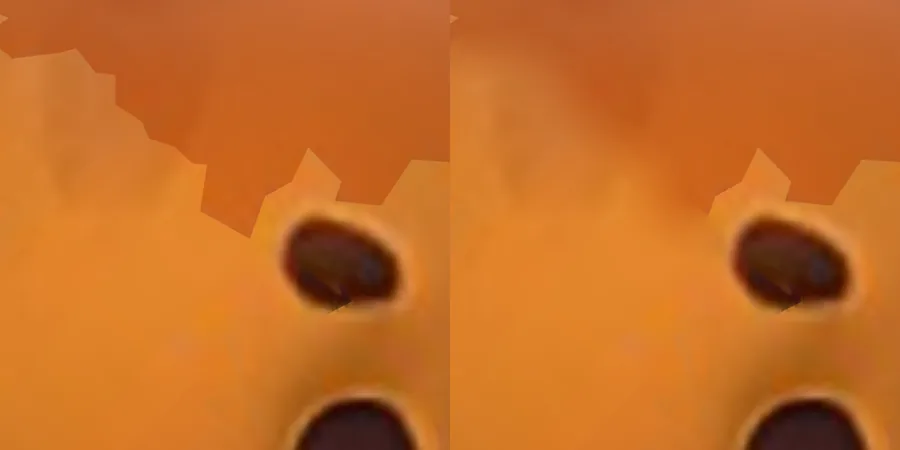 How to fix texture seams with the free Heal brushStroke along a seam line to blend it away. No credits.
 How to fix grey, unpainted spots after AI texturingTurn to the spot, tick Only fill grey areas, paint the view.