How to repaint only part of a 3D model with AI
Sometimes the texture is almost right: the scarf should be red, the shoe soles should be black. Instead of texturing the whole model again, mark the part and repaint only it. Everything outside the mark stays exactly as it is.
What you need
- A model open in the studio, painted or still grey
- 2 credits per repaint
1Turn the model so you can see the part
Use the view buttons (Front, Right, Back, Left, Top, Bottom) or drag in the viewer until the part you want to change faces you. The repaint uses exactly this view.
2Press Select region and brush over the part
In box 3 Paint with AI, under Brush on the model, press Select region. The button turns pink, and dragging in the viewer now brushes instead of turning the model.
Brush over the part in the viewer. The mark shows in pink on the model. Change the size with the Brush size slider. Went too far? Tick Eraser and brush over the extra bit.
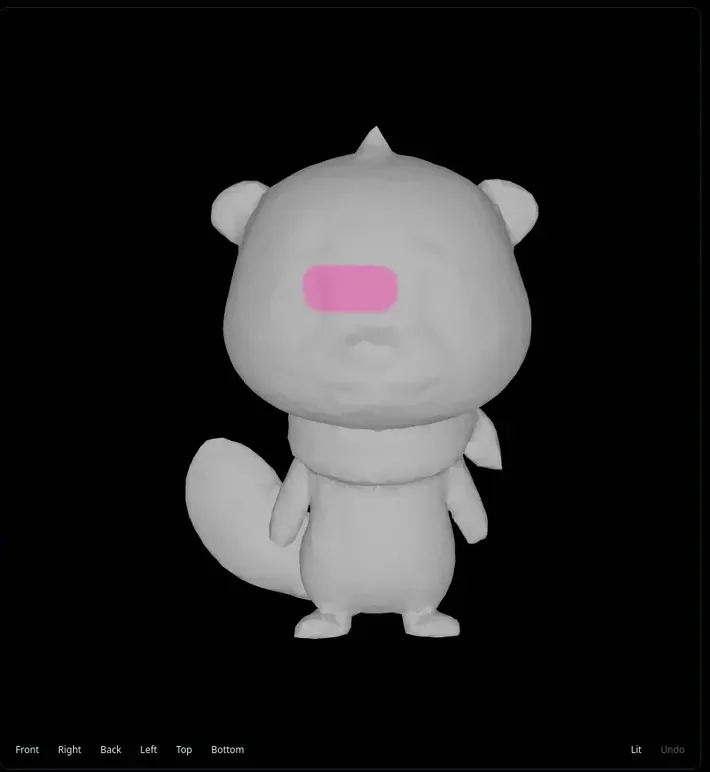
The pink mark sits on the model’s surface, not on the screen. 3Press Select region again to turn the model
Press Select region again to switch the brush off; dragging turns the model again. To mark a spot on another side, turn the model, press Select region and brush more.
While a mark exists, the paint button reads Paint the marked part (2 credits), and Auto texture and Quick preview are switched off. Clear the marked part removes the mark.
4Describe the new look for that part
In box 2 Describe the texture, write what this part should become, for example "bright blue patch" or "black rubber sole". Write about the part, not the whole model.
5Press Paint the marked part
Press Paint the marked part (2 credits). The AI sees the model as it looks now, repaints it, and the studio keeps only the pixels inside your mark. The mark has a soft edge, so the new paint blends into the old.
Not happy? Press Undo under the viewer and try again with a different prompt. See before/after and undo.
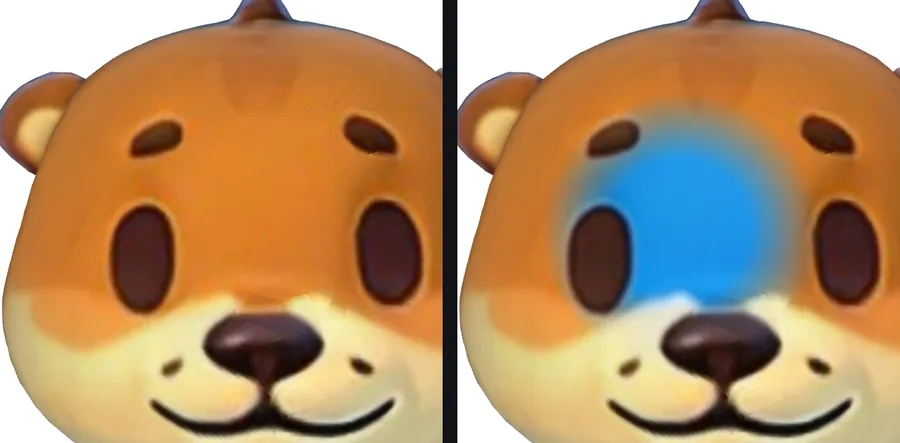
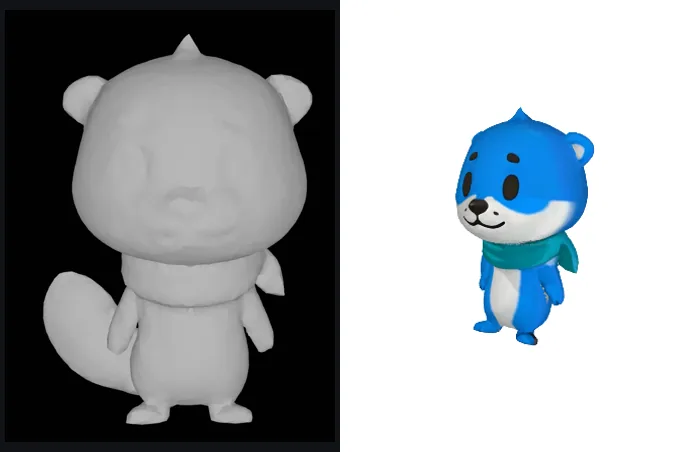
A real region repaint: before (left) and after (right). Only the marked area changed. 6Clear the mark when you are done
Press Clear the marked part to remove the mark. The buttons go back to Auto texture and Paint this view for the whole model.
A faint line where the new paint meets the old? Stroke over it with the free Heal brush. Then download your GLB.
Tips
- A part that wraps around the model (a belt, a scarf) needs a repaint from each side: mark and paint the front, then turn, mark and paint the back.
- If you erase the whole mark, the button goes back to Paint this view, which repaints everything this view sees. Check that it reads Paint the marked part before you press it.
- Only a small fix, like one wrong colour? The free Paint brush next to Select region paints a colour of your choice by hand, with no credits.
Try it now
Open the Bear sample, mark one part and repaint it.
Open the bear sampleMore tutorials
 How to texture a 3D model with AIOpen a model, describe the look, press Auto texture, download.
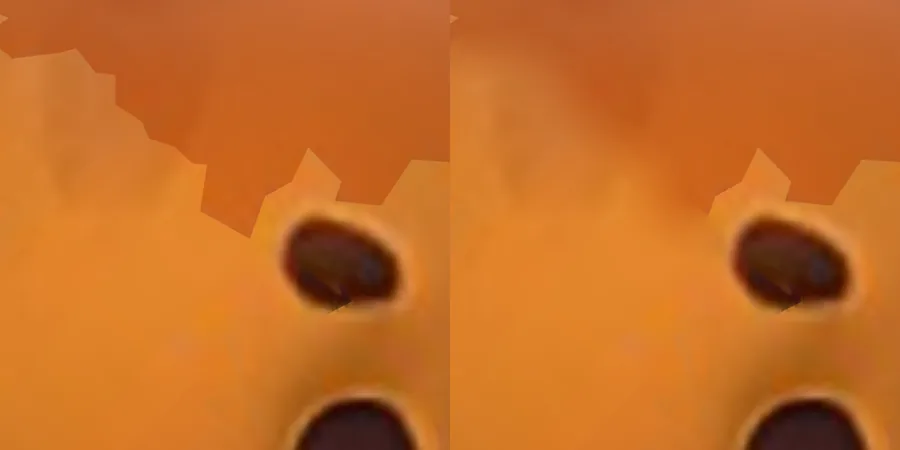 How to fix texture seams with the free Heal brushStroke along a seam line to blend it away. No credits.
 Compare before and after, undo, and repaint a viewHold for the bare model, undo up to 4 steps, paint a view again.
 How to fix grey, unpainted spots after AI texturingTurn to the spot, tick Only fill grey areas, paint the view.