How to fix grey, unpainted spots after AI texturing
Auto texture with 4 views paints from four sides. Places none of those cameras can see, such as under the chin, inside the arms or the soles of the feet, can stay grey. You can fill them without disturbing the rest.
Next time, choose 6 or 8 views before you press Auto texture: the extra views aim at exactly these areas. See texture hidden areas with more views.
What you need
- A model painted with Auto texture in the studio
- 2 credits per extra view
1Find the grey spot
Drag in the viewer or use Top and Bottom in the bar under it. Turn the model until the grey area faces you as squarely as you can.

Top and Bottom reach areas the four Auto views miss. 2Tick Only fill grey (unpainted) areas
In box 3 Paint with AI, tick Only fill grey (unpainted) areas. The next paint changes only spots that have no paint yet.
3Press Paint this view
Keep the same prompt and press Paint this view (2 credits). Repeat from other angles if more grey is left.
Then untick the box again, so later paints can change painted areas too.
Tips
- Want to change an area that is already painted but wrong? Brush over it with Select region instead.
- A tiny grey spot inside an area of one colour can also be filled for free by hand: press Paint under Brush on the model, pick the Colour and brush over the spot. Seams between views are a job for the free Heal brush.
- Not happy with a fill? Press Undo. See before/after and undo.
Try it now
Auto texture the Dragon sample, then fill what is left.
Open the dragon sampleMore tutorials
- How to texture hidden areas with 6 or 8 viewsExtra views aim at the top, underside and spots 4 views miss.
 How to texture a 3D model with AIOpen a model, describe the look, press Auto texture, download.
 How to repaint only part of a 3D model with AIBrush over one part and repaint only that area.
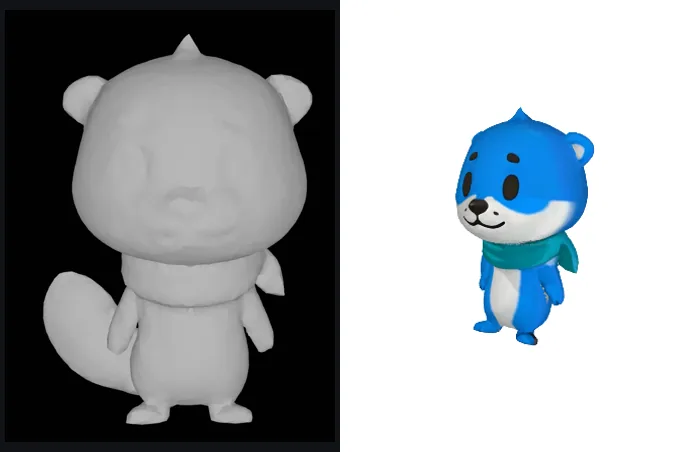 Compare before and after, undo, and repaint a viewHold for the bare model, undo up to 4 steps, paint a view again.