How to make PBR maps for a 3D model
The AI in the studio paints the colour of your model (the base colour, or albedo). Game engines and renderers use more maps: a normal map for small bumps, roughness and metalness for how shiny and metallic the surface is, and ambient occlusion (AO) for soft shadow in creases. What each one does is in PBR maps explained.
Box 4 PBR maps makes these maps from your painted texture. It is free and runs in your browser; it does not call the AI.
The maps are estimates: the normal map comes from the light and dark detail of the colour texture, roughness from its brightness and colour, and AO from the shape of your mesh. Check them in your engine and adjust the sliders.
What you need
- A painted model in the studio
- No credits: PBR maps are free
1Paint the model first
The maps are made from the painted texture, so paint first with Auto texture or Paint this view. See how to texture a 3D model with AI. Make PBR maps stays greyed out until the model has paint.
2Press Make PBR maps
In box 4 PBR maps, press Make PBR maps. The button reads Making maps... while it works. Then the viewer shows the model with the maps on, the sliders appear, and the button changes to Hide PBR preview.
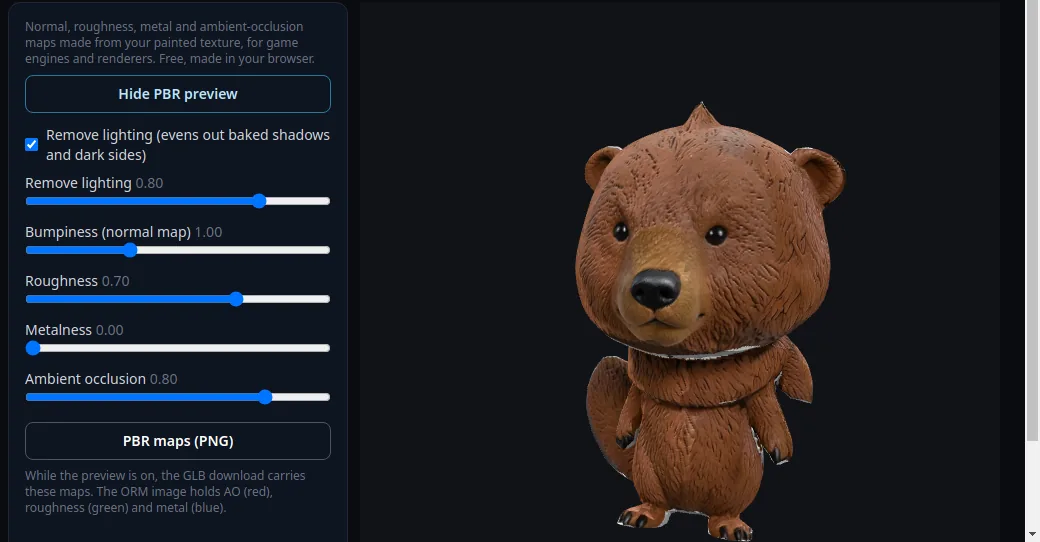
Box 4 with the preview on, and the bear rendered with its maps. 3Remove baked lighting (optional)
AI images often have shadows and highlights painted into the colour. Tick Remove lighting (evens out baked shadows and dark sides) to even them out; a slider sets how much. Leave it off if the painted shading is part of the look you want.
4Adjust the sliders
Bumpiness (normal map) sets how strong the small bumps look. Roughness sets how matte or glossy the surface is, and Metalness how metallic. Ambient occlusion sets how dark the creases get. Turn the model in the viewer to judge the result.
5Download the maps
Press PBR maps (PNG). You get a normal map (for example bear_normal.png) and an ORM map (bear_orm.png), which packs AO in the red channel, roughness in green and metalness in blue. With Remove lighting on, you also get the evened-out colour map (bear_albedo_delit.png).
Or, while the preview is on, press Download textured model (GLB) in box 5: the GLB then carries the maps too.
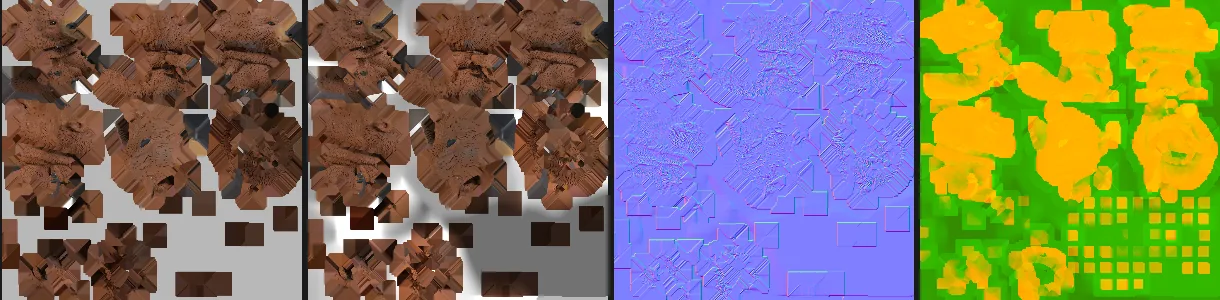
Real maps from the bear: colour, colour with lighting removed, normal, ORM. 6Update the maps after new paint
Painting again turns the preview off, and box 4 says "The texture changed. Update the maps to include the new paint." Press Update PBR maps before you download.
Tips
- Metalness is one value for the whole texture. For a model that is partly metal, leave it at 0 and paint the metal areas into the blue channel of the ORM image in an image editor.
- The AO is baked from the shape of your mesh, so creases get shadow even where the AI paint has none.
- In Blender, Unity, Unreal or Godot, the GLB with maps imports like any other GLB: see import your GLB.
Try it now
Paint the Bear sample, then press Make PBR maps.
Open the bear sampleMore tutorials
 How to texture a 3D model with AIOpen a model, describe the look, press Auto texture, download.
 Download your textured GLB and use it in Blender, Unity, Unreal or GodotGLB vs PNG, and the exact import steps for each app.
 How to keep your own UV map when texturing with AIPaint into your existing UVs so the texture fits your file.