How to keep your own UV map when texturing with AI
If your model already has a UV map (from Blender, a game asset or a model store), you often want the new texture to fit that exact layout, so you can swap it into your project without changing anything else. The studio does that with Keep my UVs.
What UVs are, and why overlapping UVs matter, is in UV unwrapping explained.
What you need
- A GLB, GLTF, OBJ or FBX file with a UV map, up to 60 MB (STL files have no UVs)
- 2 credits per AI view
1Upload your model
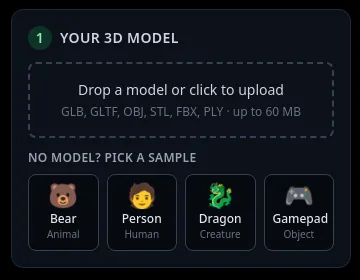
In box 1 Your 3D model, click Drop a model or click to upload. If the file has a usable UV map, a UV map choice appears under it with two options.
2Leave Keep my UVs selected
Keep my UVs is the default for uploads: the AI paints into your own UV layout and your materials are kept.
Make new UVs makes a fresh layout where every part gets its own space. Then use the GLB download, because your original file does not have those UVs.
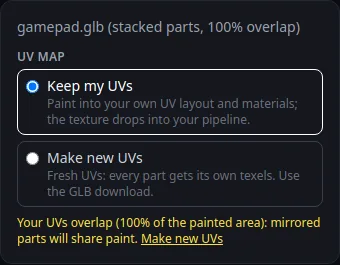
Keep my UVs on a model whose parts share one UV space, with the overlap warning. 3Check the overlap warning
If parts of your UV map use the same texture area (mirrored halves, stacked copies), the studio says in yellow: "Your UVs overlap (N% of the painted area): mirrored parts will share paint." It shows when more than 5% of the painted area overlaps.
Shared paint is fine for parts that should look the same, like a left and a right arm. If each part needs its own look, press Make new UVs in the note.
4Choose before you paint
Switching between the two options later starts the texture over. If you already painted, the studio asks "Switching the UV map starts the texture over. Continue?" first.
5Paint the model
Describe the texture and press Auto texture or Paint this view, as in how to texture a 3D model with AI.
6Download the PNG or the GLB
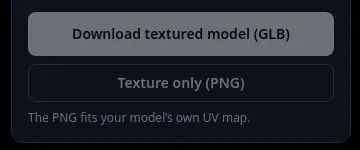
Texture only (PNG): the note under it reads "The PNG fits your model’s own UV map", so you can plug the PNG into your original file in Blender, Unity or any engine. A model with several materials gets one PNG per material, named after it. Above 8 materials, they are combined into one texture.
Download textured model (GLB): the GLB keeps your UVs exactly and keeps your material, with only the colour texture swapped (plus the PBR maps, if their preview is on). It uses the texture size of your file.
Tips
- A note "Some UV islands cross the 0-1 border" means parts of your layout sit outside the usual texture square; those bits may not take paint cleanly.
- The samples choose for you: they keep their UVs unless more than 10% overlaps. The Gamepad sample has stacked UVs, so it opens with Make new UVs; switch to Keep my UVs to see the warning.
Try it now
Open the Gamepad sample and compare Keep my UVs with Make new UVs.
Open the gamepad sampleMore tutorials
 How to add a texture to a GLB file onlineFormats, size limit, and what you keep when you download.
 Download your textured GLB and use it in Blender, Unity, Unreal or GodotGLB vs PNG, and the exact import steps for each app.
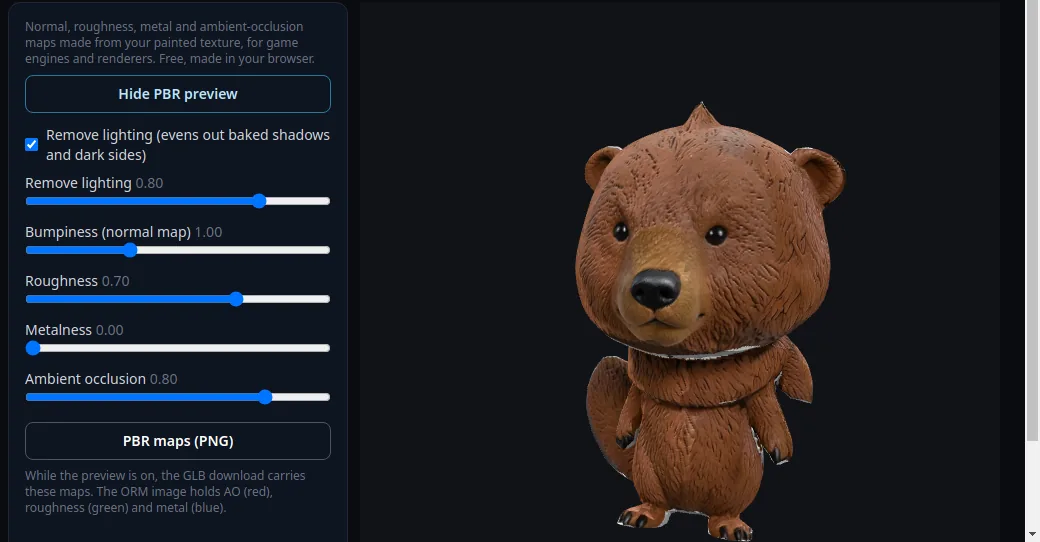 How to make PBR maps for a 3D modelNormal, roughness, metal and AO maps from your painted texture, free.