How to add a texture to a GLB file online
You have a GLB (or OBJ, FBX, GLTF, PLY) and want a new texture on it, without opening Blender. This tutorial covers what the studio accepts, what it keeps from your file, and what you download.
What you need
- A GLB, GLTF, OBJ, FBX, STL or PLY file, up to 60 MB
1Check your file
The studio opens GLB, GLTF, OBJ, STL, FBX and PLY, up to 60 MB. A .gltf that keeps its data in a separate .bin file may not open; export it as a single .glb first.
Upload it in box 1 Your 3D model with Drop a model or click to upload. The model opens in your browser; the file itself is not uploaded.
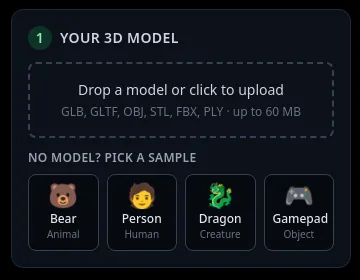
The upload box lists the formats and the 60 MB limit. 2Keep your UVs, and read the yellow notes
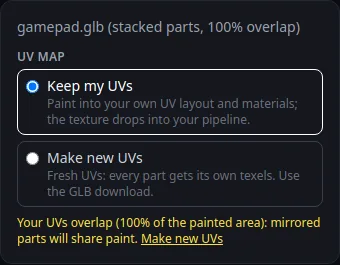
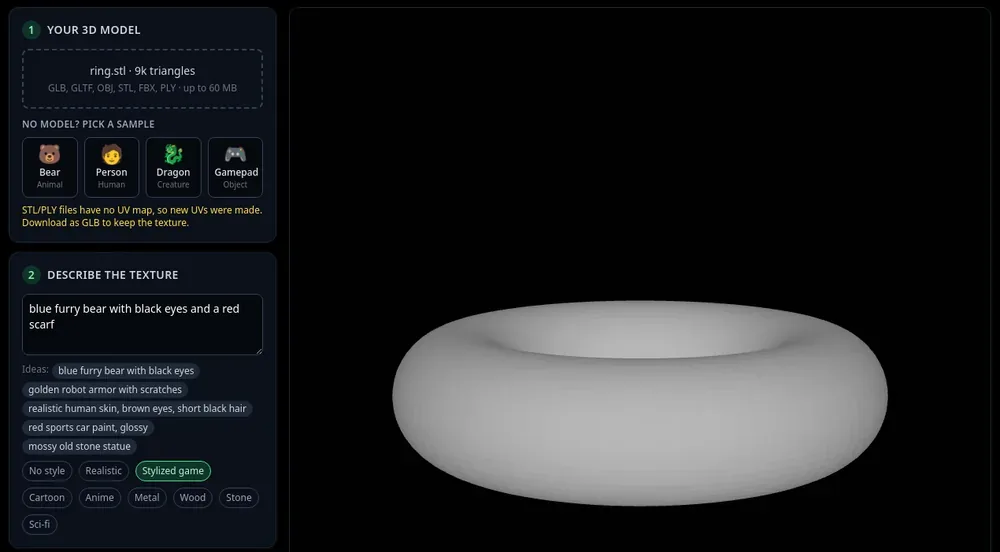
Once it opens, the box shows the file name and triangle count, for example "bear.glb · 25k triangles". If the file has a usable UV map, a UV map choice appears: Keep my UVs (the default for uploads) paints into your own UV layout and materials, so the texture drops back into your project. Make new UVs gives every part its own space in a fresh layout. Choose before you paint: switching later starts the texture over. More in keep your UV map.
The studio may add a yellow note. "Your UVs overlap (N% of the painted area): mirrored parts will share paint" means parts of your layout use the same texture area; press Make new UVs in the note if each part needs its own paint. "Some parts had no usable UV map, so new UVs were made for them" means the studio made UVs for those parts: download the GLB to keep them. "The model has N materials; they are combined into one texture" means you get one texture for the whole model. "Animated (skinned) parts are textured in their rest pose" applies to rigged characters.
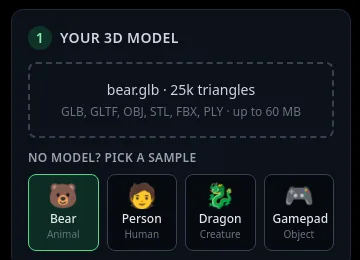
After opening: file name and triangle count. 3Describe and paint
Write the look in Describe the texture, pick a style, and press Auto texture: 4 views (8 credits), or pick 6 or 8 views first for more coverage. The full walk-through is in how to texture a 3D model with AI.
4Download the GLB and, if you want, the PNG
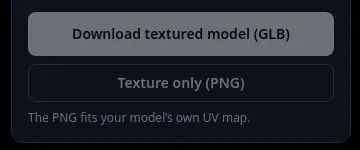
In box 5 Download, Download textured model (GLB) gives you the model with the new texture applied, same mesh, same size and units. With Keep my UVs, the GLB keeps your own UVs and your material, with only the colour texture swapped.
Texture only (PNG) gives you the texture image. If the studio kept your own UVs, the note reads "The PNG fits your model’s own UV map", so you can drop the PNG onto your original model in any 3D app. If the model got new UVs, use the GLB. A model with several materials or parts can download more than one PNG.
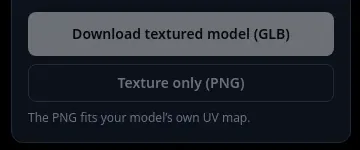
Box 5: the GLB, or the texture PNG alone.
Tips
- The AI paints the colour texture and replaces the old one. Your mesh and its polygon count stay the same. For normal, roughness, metal and AO maps, use the free Make PBR maps in box 4 before you download: see make PBR maps.
- Very large models open more slowly. If the viewer resets because the browser ran out of graphics memory, reload the page and try a lighter version of the model.
Try it now
Drop your GLB into the studio.
Open the studioMore tutorials
 How to keep your own UV map when texturing with AIPaint into your existing UVs so the texture fits your file.
 Download your textured GLB and use it in Blender, Unity, Unreal or GodotGLB vs PNG, and the exact import steps for each app.
 How to texture an STL file for 3D printingSTL has no UVs or colour. Get UVs automatically, paint, export GLB.
- How to texture a 3D model with AIOpen a model, describe the look, press Auto texture, download.