How to texture a Blender model with AI
You modelled something in Blender and want an AI texture on it, without installing an add-on. Export it, paint it in the AI 3D Texturing Studio in your browser, and bring it back. Your mesh and its polygon count stay the same.
Prefer to stay inside Blender? Add-ons exist; we compare them in free AI 3D texturing tools.
What you need
- Blender with your model
- A free the3dai account to paint (each AI view costs 2 credits)
1Export a GLB from Blender
Select your model, then File › Export › glTF 2.0 (.glb/.gltf). Set Format to glTF Binary (.glb), so everything is in one file, and tick Include › Selected Objects if you only want the selection.
The studio opens files up to 60 MB and 600k triangles. If your model has a UV map, the texture will be painted into it. No UV map is fine too: the studio makes one.
2Open it in the studio
In box 1 Your 3D model, click Drop a model or click to upload and pick the .glb. It opens in your browser and the box shows the file name and triangle count.
If your model has a UV map, leave Keep my UVs selected (the default for uploads). The texture then fits your own UV layout, so the PNG also works on the object you still have in Blender. More in keep your UV map.
3Describe the texture and paint
In box 2 Describe the texture, write the look, for example "weathered bronze statue with green patina", and pick a style if you like.
In box 3 Paint with AI, press Auto texture: 4 views (8 credits). For more coverage pick 6 or 8 views first (12 or 16 credits). Quick preview: 4 sides in 1 call (2 credits) gives a rough first look. Each view takes about 15 to 30 seconds.
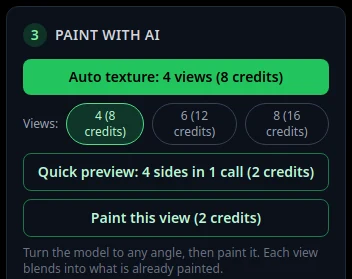
Box 3: Auto texture, the number of views, Quick preview and Paint this view. 4Check every side
Turn the model, or use Front, Right, Back, Left, Top and Bottom under the viewer. Fix a spot by facing it and pressing Paint this view (2 credits). Areas the cameras never saw: texture hidden areas.
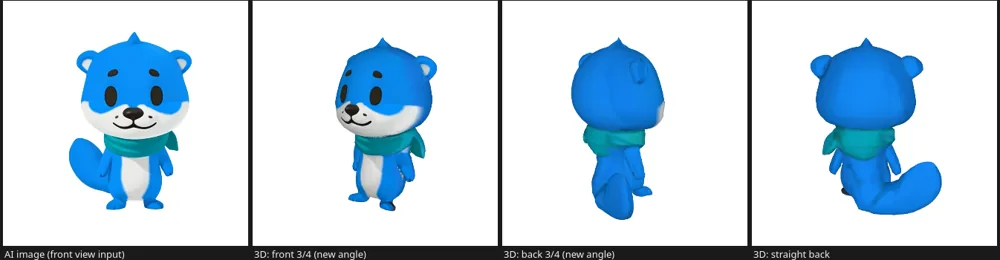
A real Auto texture result on the Bear sample, seen from new angles. 5Download the GLB
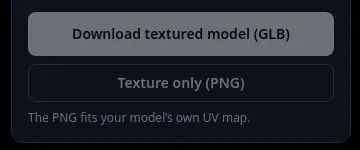
In box 5 Download, press Download textured model (GLB). You get a file like model_textured.glb, in the same units as your export. Want normal, roughness and AO maps too? Press Make PBR maps in box 4 first: see make PBR maps.
6Import it back into Blender
In Blender, File › Import › glTF 2.0 (.glb/.gltf) and pick the downloaded file. Then press Z and choose Material Preview: in the default Solid view the texture does not show.
With Keep my UVs you can also keep your original object: download Texture only (PNG), add an Image Texture node with the PNG in the Shader Editor, and connect it to Base Color of the Principled BSDF.
Tips
- Texture not showing after import? See fix missing textures after import.
- Exported a GLB but the studio says it is over 600k triangles? Reduce the mesh in Blender before you texture, so the UVs you paint into are the final ones.
Try it now
Try the flow on the Bear sample first.
Open the bear sampleMore tutorials
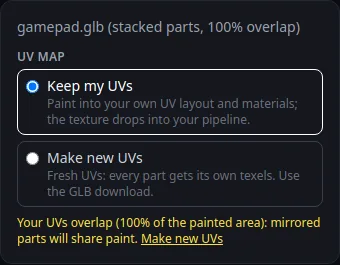 How to keep your own UV map when texturing with AIPaint into your existing UVs so the texture fits your file.
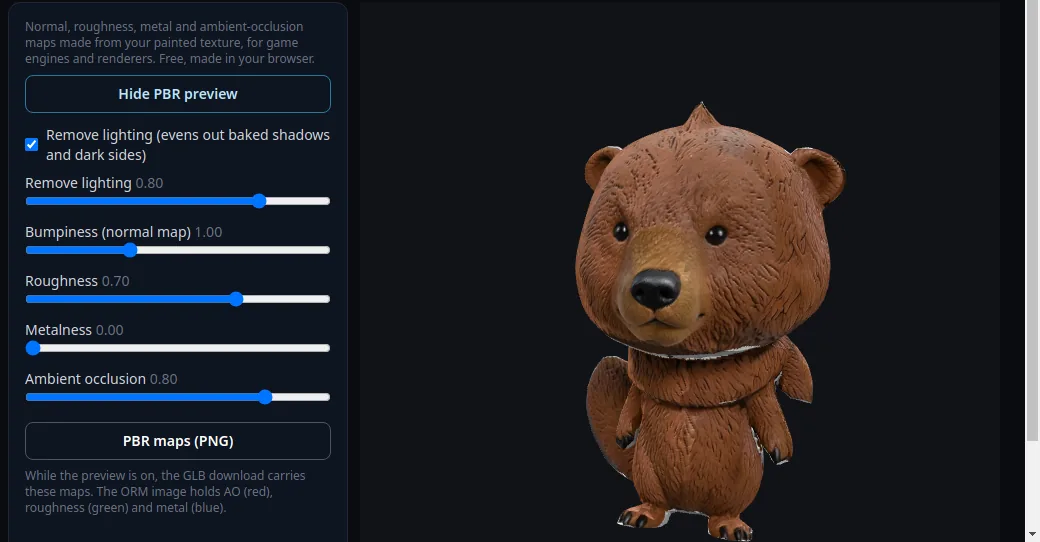 How to make PBR maps for a 3D modelNormal, roughness, metal and AO maps from your painted texture, free.
 Download your textured GLB and use it in Blender, Unity, Unreal or GodotGLB vs PNG, and the exact import steps for each app.
 GLB has no texture after import? How to fix missing texturesWhy a GLB, OBJ or FBX opens grey, and how to get the texture back.