How to add an AI texture to a mesh in Roblox Studio
Roblox gives a MeshPart its look in one of two ways: one texture image in TextureID, or PBR maps in a SurfaceAppearance. Both need an image that fits the mesh’s UV map. This tutorial paints that image with AI in the AI 3D Texturing Studio, then applies it in Roblox Studio.
What you need
- Your mesh as FBX, OBJ or GLB, with a UV map and one material
- Under 20,000 triangles per mesh (Roblox’s limit)
- Roblox Studio, and 2 credits per AI view
1Get the mesh ready
Roblox meshes take one material and one UV set each, and an individual mesh can not go over 20,000 triangles. Fix all three in your 3D app before you texture, so the texture is painted into the final UVs.
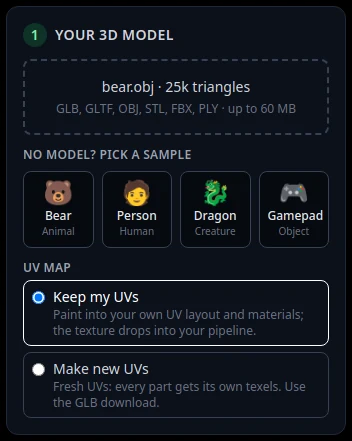
The studio never changes your mesh. Its Bear sample has 25k triangles, which is fine for practice but over Roblox’s limit.
2Paint the texture in the studio
Upload the file in box 1 Your 3D model and leave Keep my UVs selected, so the texture fits the UV map Roblox will use.
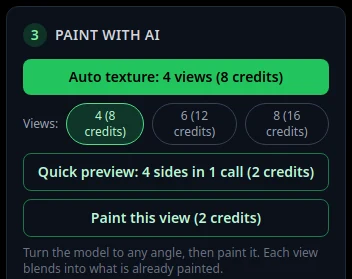
Describe the look, press Auto texture: 4 views (8 credits), and fix spots with Paint this view (2 credits). Steps: how to texture a 3D model with AI.
3Download the texture PNG
In box 5 Download, press Texture only (PNG). Check the note says "The PNG fits your model’s own UV map". If it says "This model got new UVs, so use the GLB", your file had no usable UVs: add a UV map in your 3D app and start again.
The PNG is 2048 x 2048 on a desktop, or your file’s own texture size. Roblox accepts up to 4096 x 4096 and suggests about 1024 x 1024 for an object 20 x 20 studs big.
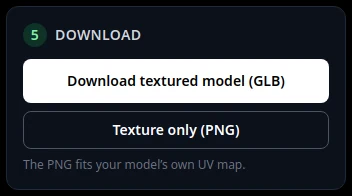
Texture only (PNG) gives the image for TextureID or ColorMap. 4Import the mesh into Roblox Studio
In Roblox Studio, open the File menu, choose Import, pick your mesh file (the same one you painted) and press Import. The 3D Importer takes .fbx, .obj and .gltf files.
The Importer can also bring in textures with .fbx and .gltf files. Its docs do not name .glb, so the steady route is the one here: import the mesh, then add the PNG yourself.
5Upload the PNG and copy its ID
Open the Asset Manager from the Window menu or the Home tab, and use its import button to upload the PNG. Imported images go through Roblox moderation.
Right-click the image and choose Copy Asset ID.
6Set TextureID on the MeshPart
Select the MeshPart in the Explorer, find TextureID in the Properties window and paste the ID. The texture shows on the mesh.
7Or use a SurfaceAppearance for PBR
For a surface that reacts to light, hover the MeshPart in the Explorer, click the ⊕ button and insert a SurfaceAppearance. Set its ColorMap to your texture. A SurfaceAppearance overrides TextureID.
In the studio, Make PBR maps in box 4 and PBR maps (PNG) give a normal map ("_normal.png") and an ORM image ("_orm.png"). The normal map uses the OpenGL style Roblox asks for, so it can go in NormalMap. Roblox wants roughness and metalness as separate greyscale images, while the ORM image packs AO in red, roughness in green and metal in blue: split the green and blue channels in an image editor first, or leave those two maps empty.
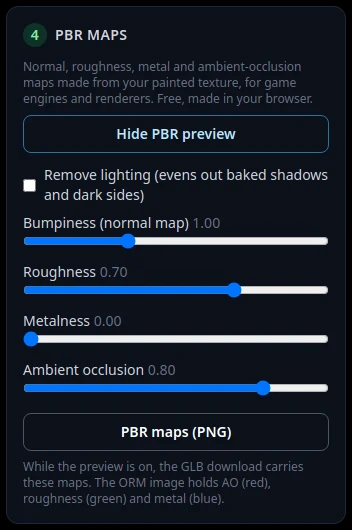
Box 4 after Make PBR maps: the PNG button saves the normal and ORM maps.
Tips
- Mirrored parts in your UV map share paint. The studio warns "Your UVs overlap"; see keep your UV map.
- More about the maps in PBR maps explained.
Try it now
Paint a texture for your Roblox mesh.
Open the studioMore tutorials
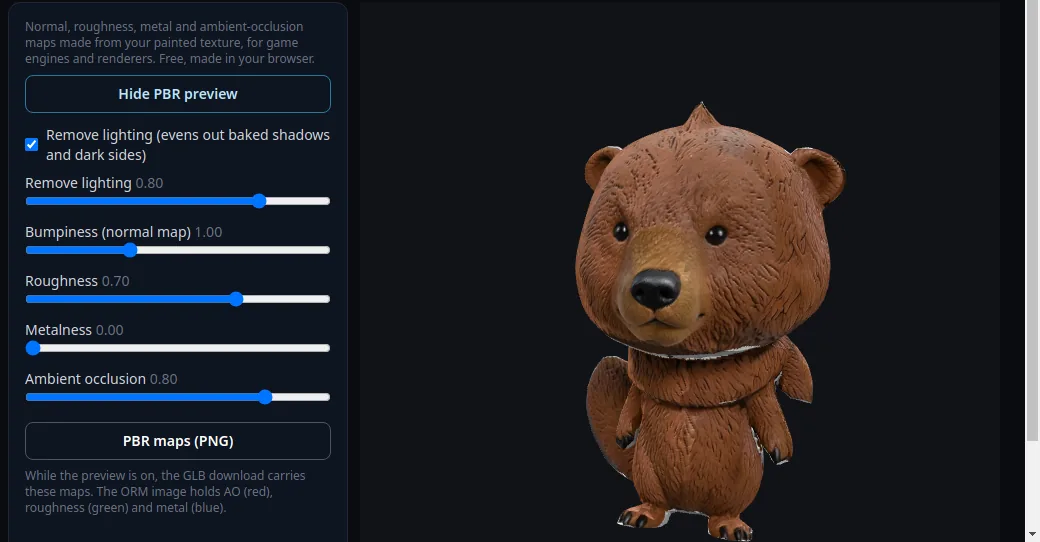 How to make PBR maps for a 3D modelNormal, roughness, metal and AO maps from your painted texture, free.
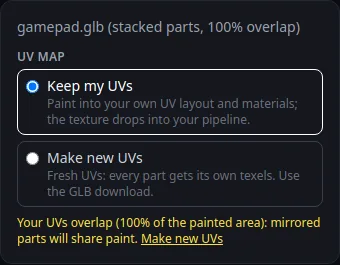 How to keep your own UV map when texturing with AIPaint into your existing UVs so the texture fits your file.
 How to add a texture to an OBJ file onlineUpload the .obj, paint it with AI, use the PNG or the GLB.
 How to texture a Blender model with AIExport a GLB from Blender, paint it with AI, import it back.