How to add a texture to an OBJ file online
OBJ is one of the oldest 3D formats, and it keeps textures outside the model: the .obj holds the shape and UVs, a .mtl file lists the materials, and the images sit next to them. This tutorial shows what the studio does with an OBJ, and how to get the new texture back into your files.
What you need
- An OBJ file, up to 60 MB (the .mtl and images are not needed)
- 2 credits per AI view
1Upload only the .obj
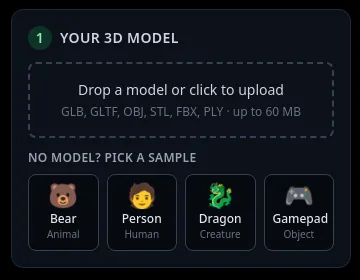
In box 1 Your 3D model, click Drop a model or click to upload and pick the .obj. The studio opens one file, so leave the .mtl and the images out.
From the OBJ it reads the shape, the UV map (the "vt" lines) and the material names ("usemtl"). It does not read the .mtl or its images, so your model opens grey even if it had a texture. The new texture replaces it anyway.
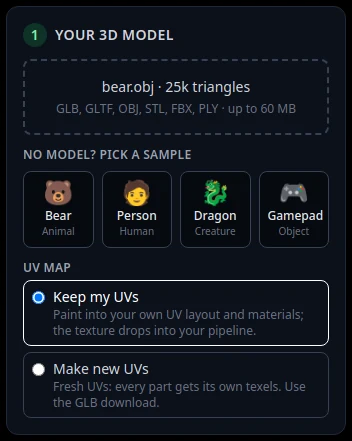
An OBJ with UVs opens with Keep my UVs selected. 2Keep your UVs
If your OBJ has a UV map, the UV map choice appears with Keep my UVs selected. The texture is then painted into your own layout, so the PNG fits your .obj as it is.
No "vt" lines in the file? The studio makes new UVs and says so in yellow: "Some parts had no usable UV map, so new UVs were made for them." Then use the GLB download, because your .obj does not have those UVs.
An OBJ with several materials gets one texture per material, up to 8. With more, the studio says "The model has N materials; they are combined into one texture."
3Describe and paint
Write the look in box 2 Describe the texture, pick a style, and press Auto texture: 4 views (8 credits). Full walk-through: how to texture a 3D model with AI.
4Download the PNG or a GLB
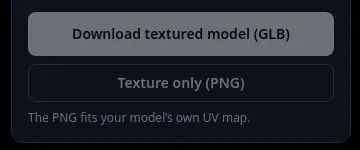
Texture only (PNG) saves the texture, for example bear_texture.png. With several materials you get one PNG per material, named after it. When the note says "The PNG fits your model’s own UV map", it lines up with your .obj.
Download textured model (GLB) gives you one file with the shape, UVs and texture inside, like bear_textured.glb. The studio does not save OBJ files.
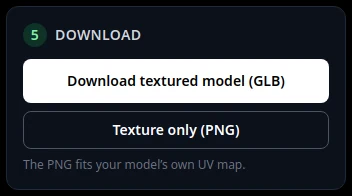
Box 5 after painting an OBJ with its own UVs. 5Hook the PNG up to your OBJ
Put the PNG next to your .mtl. Open the .mtl in a text editor, find the material (the "newmtl" line) and set its colour texture: "map_Kd bear_texture.png". Add the line if there is none. Keep the .obj, .mtl and PNG together when you share them.
In a 3D app you can instead connect the PNG as the base colour of the material.
Tips
- OBJ has no fixed unit. The GLB keeps the same numbers as your file, so it comes out the same size in apps that read both.
- Have a GLB instead? See add a texture to a GLB online.
Try it now
Drop your OBJ into the studio.
Open the studioMore tutorials
 How to add a texture to a GLB file onlineFormats, size limit, and what you keep when you download.
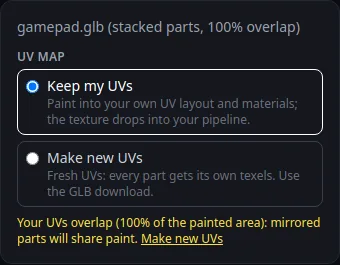 How to keep your own UV map when texturing with AIPaint into your existing UVs so the texture fits your file.
 Download your textured GLB and use it in Blender, Unity, Unreal or GodotGLB vs PNG, and the exact import steps for each app.
 GLB has no texture after import? How to fix missing texturesWhy a GLB, OBJ or FBX opens grey, and how to get the texture back.