How to texture a 3D model you generated with AI
If you made a model on the3dai (for example with Image to 3D), you do not need to download and upload it again. The 3D viewer has a Texture with AI button that opens it straight in the studio.
What you need
- A model you generated on the3dai
1Open your model in the 3D viewer
Generate a model, or open one you made before. The viewer shows buttons for download formats, share and embed.
2Press Texture with AI
Press Texture with AI next to the share and embed buttons. The studio opens with your model already loaded. The button shows only for models generated on the3dai, not for files you opened from your computer.
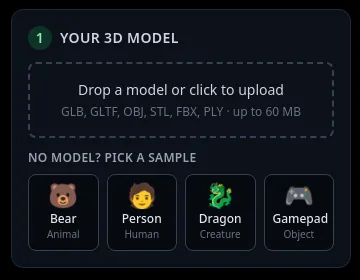
If the model does not open (for example it is over 60 MB), download it from the viewer and upload the file in the studio instead.
3Describe, paint and download
Describe the new look, press Auto texture: 4 views (8 credits) (or pick 6 or 8 views first), and download the GLB. The full steps are in how to texture a 3D model with AI.
Tips
- Wait for the triangle count to appear in box 1 before you paint. If you upload a file or pick a sample while your model is still loading, the studio opens your upload or sample instead.
Try it now
Or try the studio now with a sample model.
Open the studioMore tutorials
 How to texture a 3D model with AIOpen a model, describe the look, press Auto texture, download.
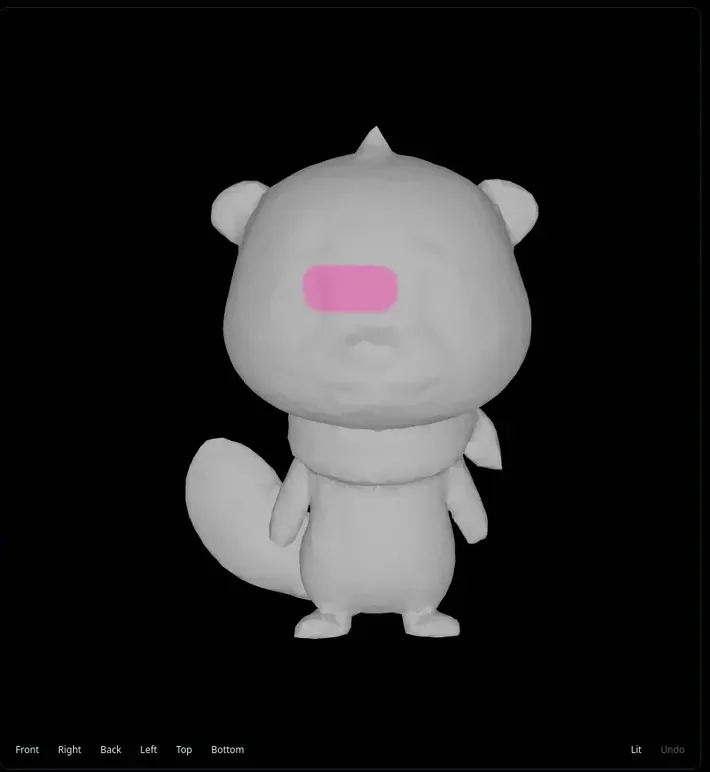 How to repaint only part of a 3D model with AIBrush over one part and repaint only that area.
 Download your textured GLB and use it in Blender, Unity, Unreal or GodotGLB vs PNG, and the exact import steps for each app.